Cue Groups
Two or more cues that are called together (say LX 2 + SPOT 1, GO) live in a cue group. The group has one connecting line back to the anchor word, so the row reads left to right as one call. A thin grey outline goes round every group, on screen and in PDF exports, so you can see which cues belong together.
There are exactly two ways to make a group.
The Group button
Use this to put cues that are already on the page into one row.
In cue-placement mode the left rail shows a Group button, along with a Time button for dropping a timestamp without leaving cue placement (see Text & Timestamps). Tap Group, then tap each cue on the page you want in the group. Selected cues glow with a second outline. Tap one again to take it out of the selection. A banner across the top lists the group as it grows, for example “Group: LX 2, SPOT 1”, and has Done and Cancel.
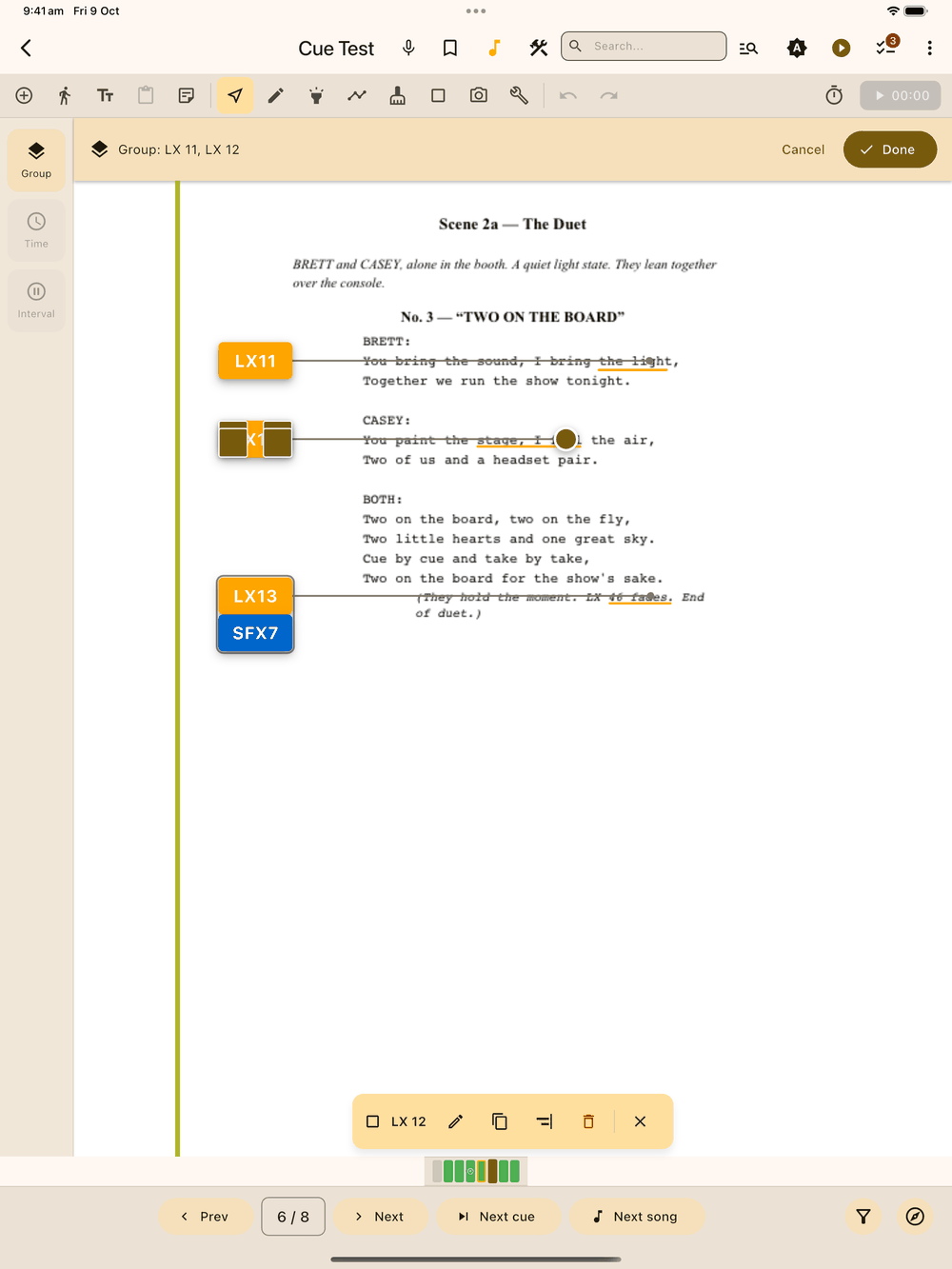
- Done makes a new group from every cue you selected. If you pick a cue that’s already in a group, that whole group comes along, so you can merge rows. The cues line up in reading order, the group sits where the first of them was, and a long group wraps onto more rows.
- If you’ve selected fewer than two cues, Done reminds you to pick at least two.
- Cancel leaves without changing anything.
Add to Group
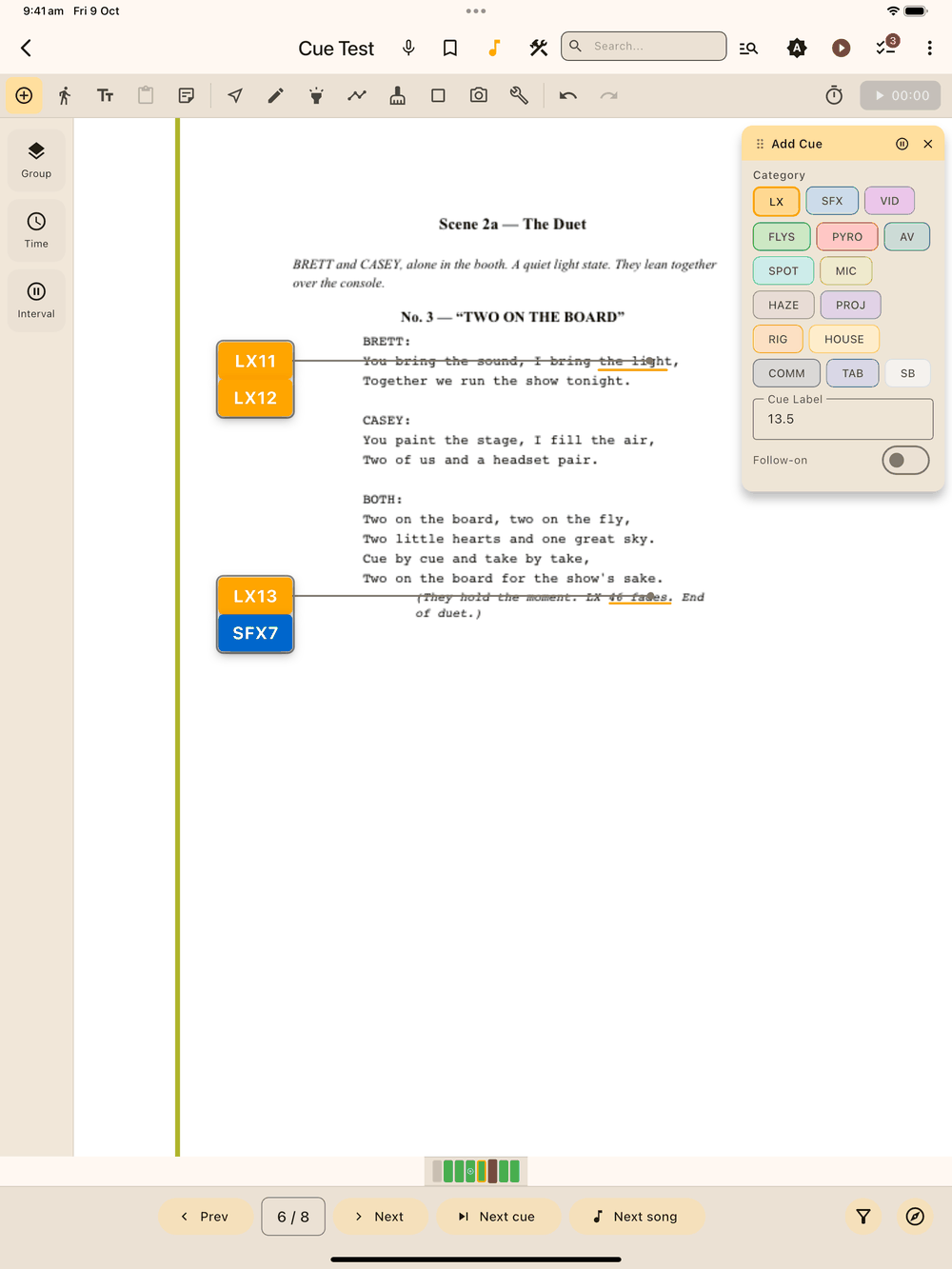
Use this to add a new cue to an existing row.
Once you’ve placed a cue, the Add Cue panel shows an Add to Group button below Update Selected. Press it and Lx1go makes a new cue with the panel’s current category, label and follow-on setting, and adds it to the selected cue’s row, straight after that cue. Nothing already on the page moves. Press it again and the row grows again. The Cue Label moves on to the next number between presses, just like normal tap-to-place.
The selection moves to the newest cue each time, so pressing Add to Group over and over keeps adding to the row you’re building. To add to a different row, tap any other cue on the page first. The next Add to Group then extends that row, after the cue you tapped.
Because cues only group through these two buttons, you won’t join cues by accident while you’re placing them.
Arranging a group
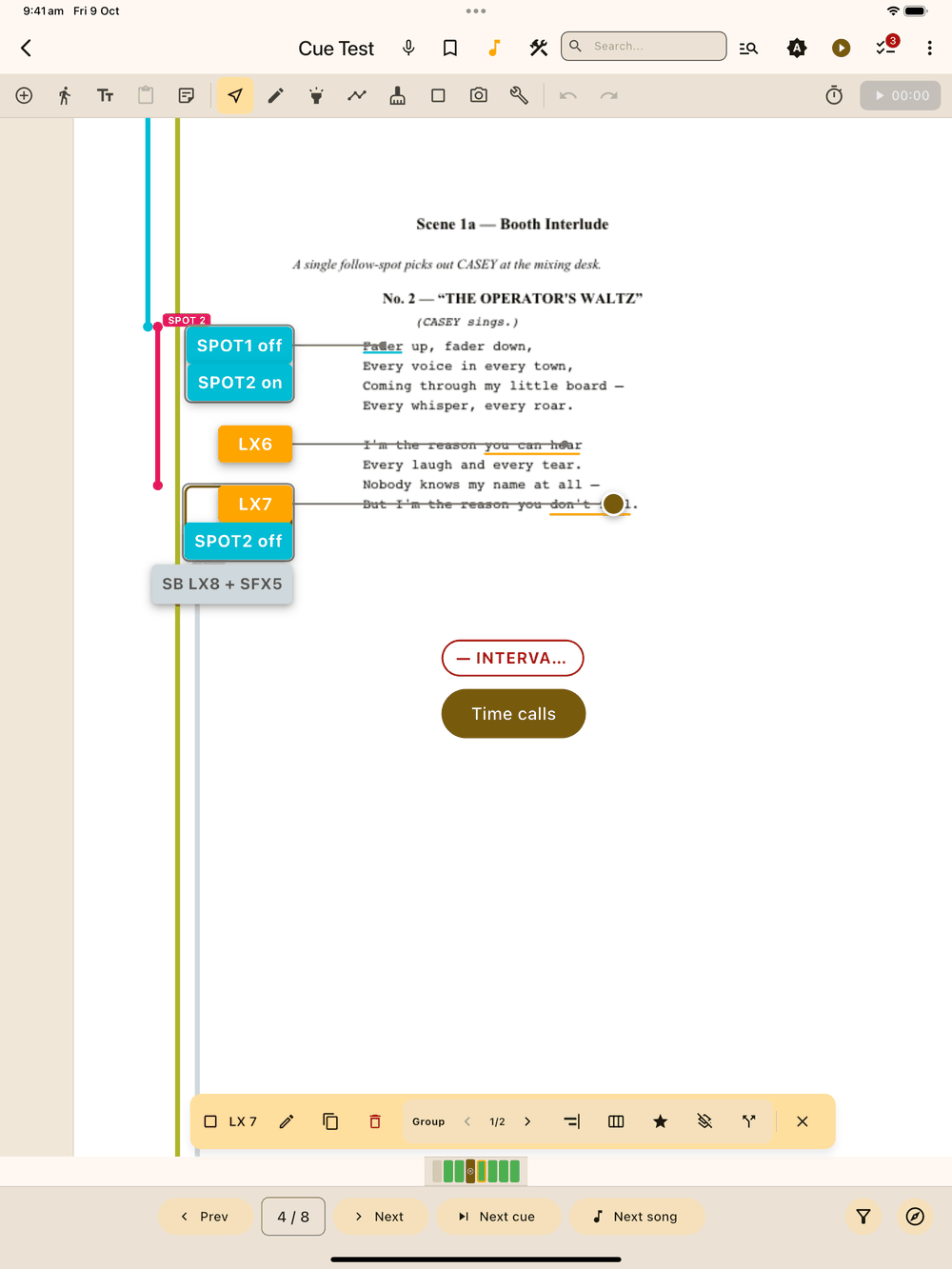
Tap a cue in a group and the selection bar at the bottom of the screen gets a shaded Group section that acts on the cue you tapped.
Two outlines show at once so you always know which cue you’re about to change. The group keeps its own outline around the whole row, and the cue you tapped is picked out inside it with a tinted fill, a thicker border in the accent colour, and its own resize handles. Edit, Copy and Delete act on that cue, not on the whole row.
The Group section has:
- n/N : moves the cue one place left or right in the row. The number shows where it sits.
- Align to left / right gutter : snaps the whole group back to its side of the text.
- Cues per line : Auto, or a fixed 1 to 6 cues on each row.
- Use for word highlight : the group’s word highlight takes this cue’s style and colour. The star is filled on the cue the mark currently comes from. Press it again on that cue to go back to the default (the first LX cue). If that cue later leaves the group, the mark goes back to the default by itself.
- Remove from group : the cue leaves the row and stays where it is on the page.
- Ungroup all : splits the whole group back into single cues without moving them.
Moving a group
Dragging a cue in a group moves the whole row together. Every cue follows your finger, their top edges stay lined up, and the row drops at the new spot. The row’s left edge stops at the far-left gutter, so a group can slide into the outer margin but never off the page area.
Groups in show mode
In show mode, tapping any cue in a group moves the whole group to its next state together (GO, then complete, with a Stand By first if Call Stand By before GO is on). Every cue in the group changes at once, so a shared call reads as one moment.