Cue List & Notes
The Cue List
The Cue List shows every cue in the show in page order, top to bottom on each page. Open it from:
- the edit screen’s ⋮ menu → Cue list ;
- the Tools hub in the app bar, on its Cue List tab (on narrow windows the hub is under ⋮ → Tools);
- the Cue List button in the show mode overlay.
Filtering by category
A row of category chips runs along the top, one per cue type, in each type’s colour. Tap a chip to show only that category; tap more chips to add them, so LX + SFX shows both. Tap a selected chip again to drop it. The All chip appears once any filter is on and clears it. Your filter stays set while the app is open.
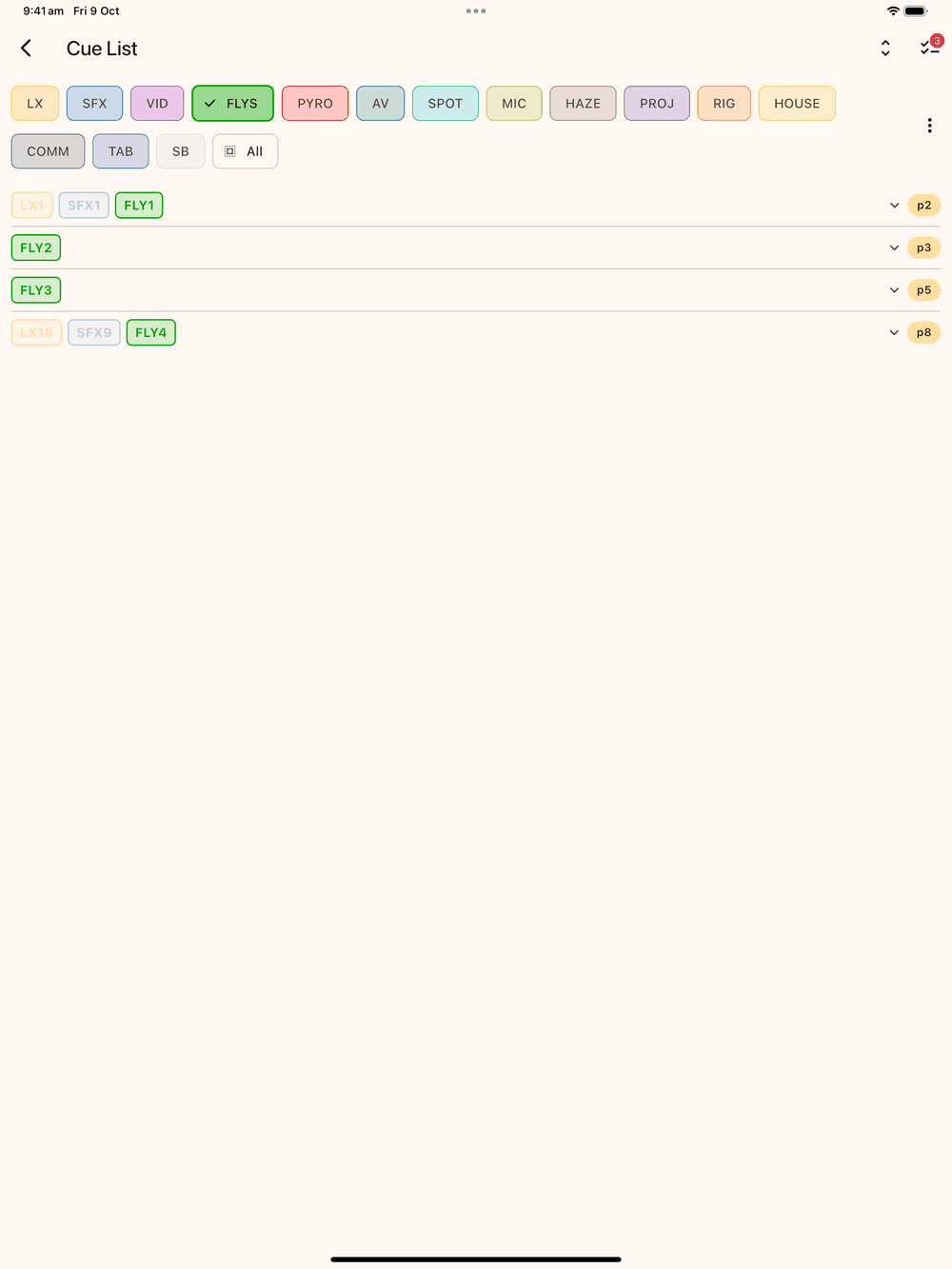
Cue types with Visible in Add Cue picker turned off in Setup → Cue Types don’t get a chip, and their cues don’t appear.
Renumbering cues
You can renumber every cue in one category (LX, SFX, FLYS…) as 1, 2, 3… in show order: top to bottom on each page, from the front of the script to the back. Point cues (1.5, 2.5) become whole numbers.
- In the Cue List opened from the edit screen (⋮ menu or the Tools hub’s Cue List tab), tap ⋮ at the right end of the category chips, then Renumber cues… .
- Pick a category. If exactly one category chip is selected, that category is used and this step is skipped. Only cues in that category are touched; nothing else moves.
- Confirm. You can’t undo this with the Undo button, but each changed page’s previous version is kept in its History, so you can roll a page back if needed. The list refreshes with the new numbers.
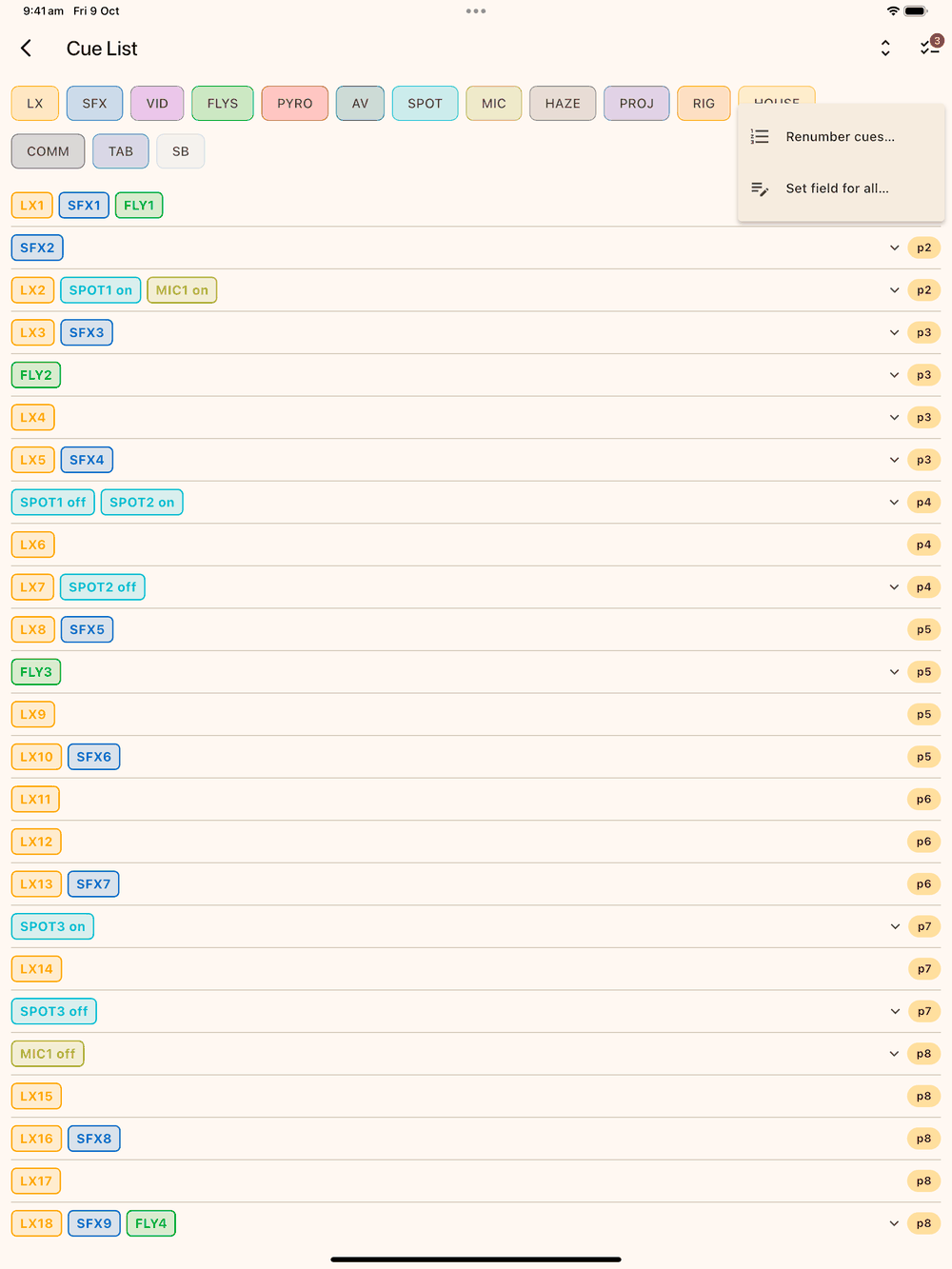
The Cue List opened from show mode has no ⋮ menu, so you can’t renumber during a run.
Setting a field on every cue of a type
You can fill in the same field on every cue of one type in one go. For example, make every SPOT cue’s Operator 1.
- In the Cue List opened from the edit screen, tap the chip for the cue type you want, so it is the only chip selected. Each cue type has its own fields, so the app needs exactly one.
- Tap ⋮ at the right end of the chips, then Set field for all… .
- Pick the field, for example Operator, and enter the value. To empty that field on every cue instead, tick Clear this field instead.
- Tap Next. The app tells you how many cues and pages will change, for example “Set Operator to “1” on 42 SPOT cues across 18 pages?”. Cues inside a group are counted too.
- Tap Set (or Clear) to go ahead, or Cancel to leave everything as it was.
Only that one field changes. Labels, positions and every other field on those cues stay as they were, and other cue types aren’t touched.
This can’t be undone with the Undo button. Each changed page’s previous version is kept in its History, so you can roll a page back if you need to.
Grouped cues
A cue group is listed as one row, with a chip for each cue in the group left to right. When a filter is on, the row still shows if any cue in it matches; the cues that don’t match are dimmed so you can still see what they’re paired with.
Reading a row
Each row shows the cue label, its “when” line and details, and a p<N> page chip on the right.
- Tap the page chip to jump to that page. The list closes and you land on the page.
- Tap the row to expand it and see the full “when” or details text, the cue’s per-category fields, and any Follow-on or Auto flags. Tap again to collapse. Expand all opens every row at once.
Page notes
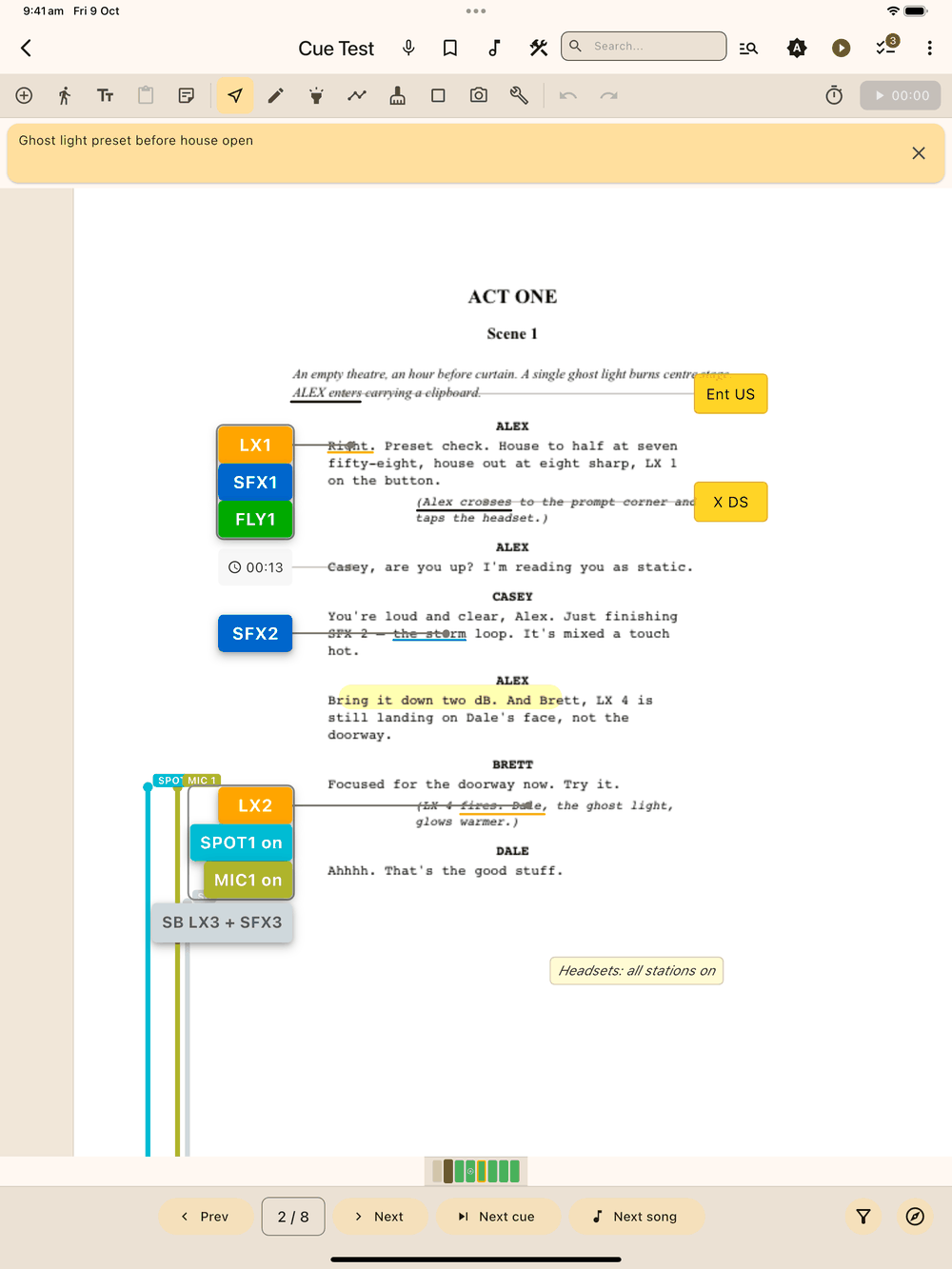
Notes are short reminders (holds, cast reminders, a prop to check) that sit in a strip of cards above the page image, so they never cover the script.
Adding a note
In the edit screen, tap Add Page Note in the tool bar. On narrow windows it’s under More tools . Type the note and tap Add. A page can have as many notes as you like; they stack in the order you added them.
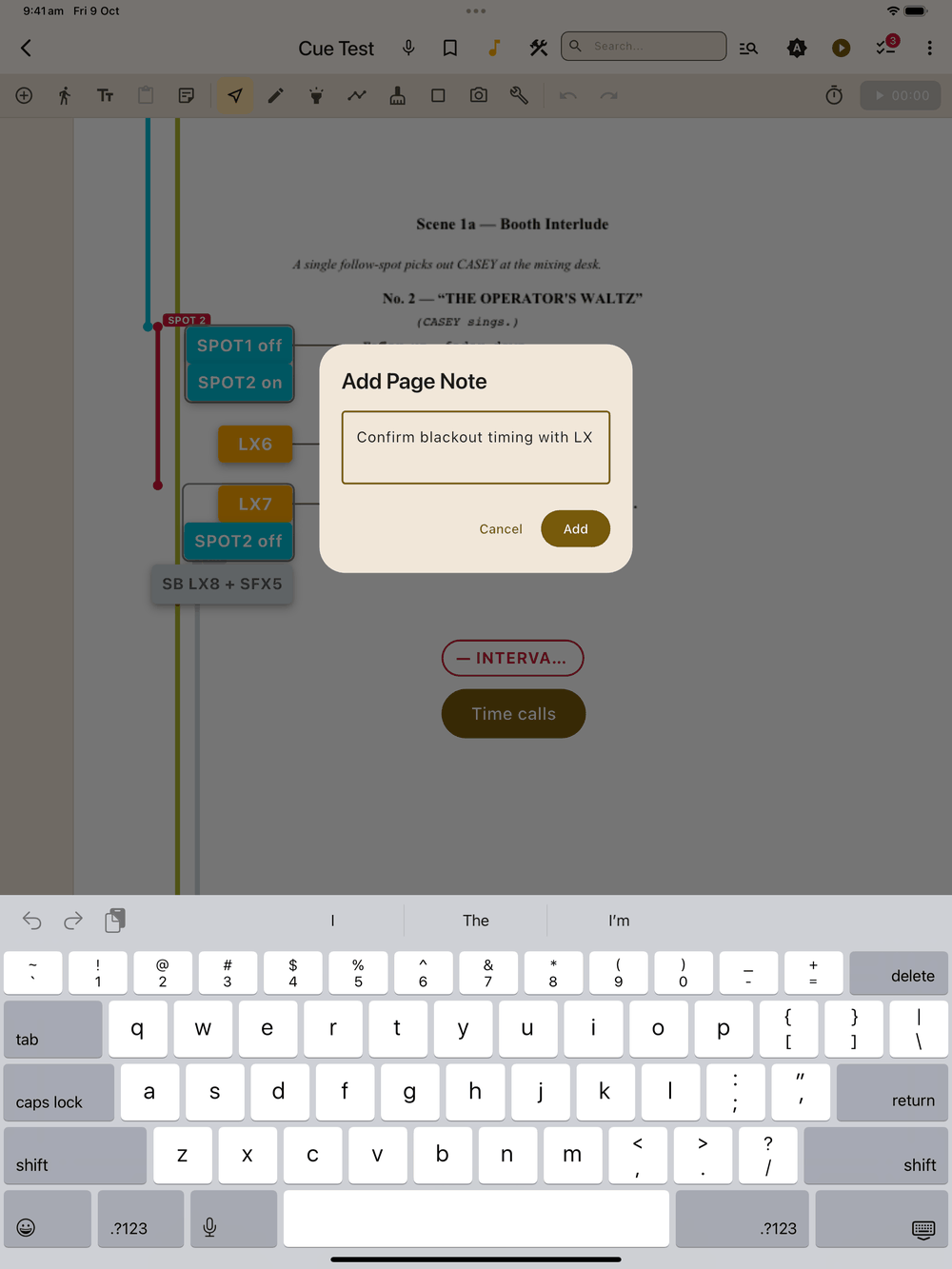
- To edit a note, tap its text in the edit screen.
- To delete one, tap the ✕ on the card and confirm. This works in show mode too, so you can clear a reminder mid-run. Notes can’t be edited in show mode.
Notes also print above their page when you export a PDF.
The Notes list
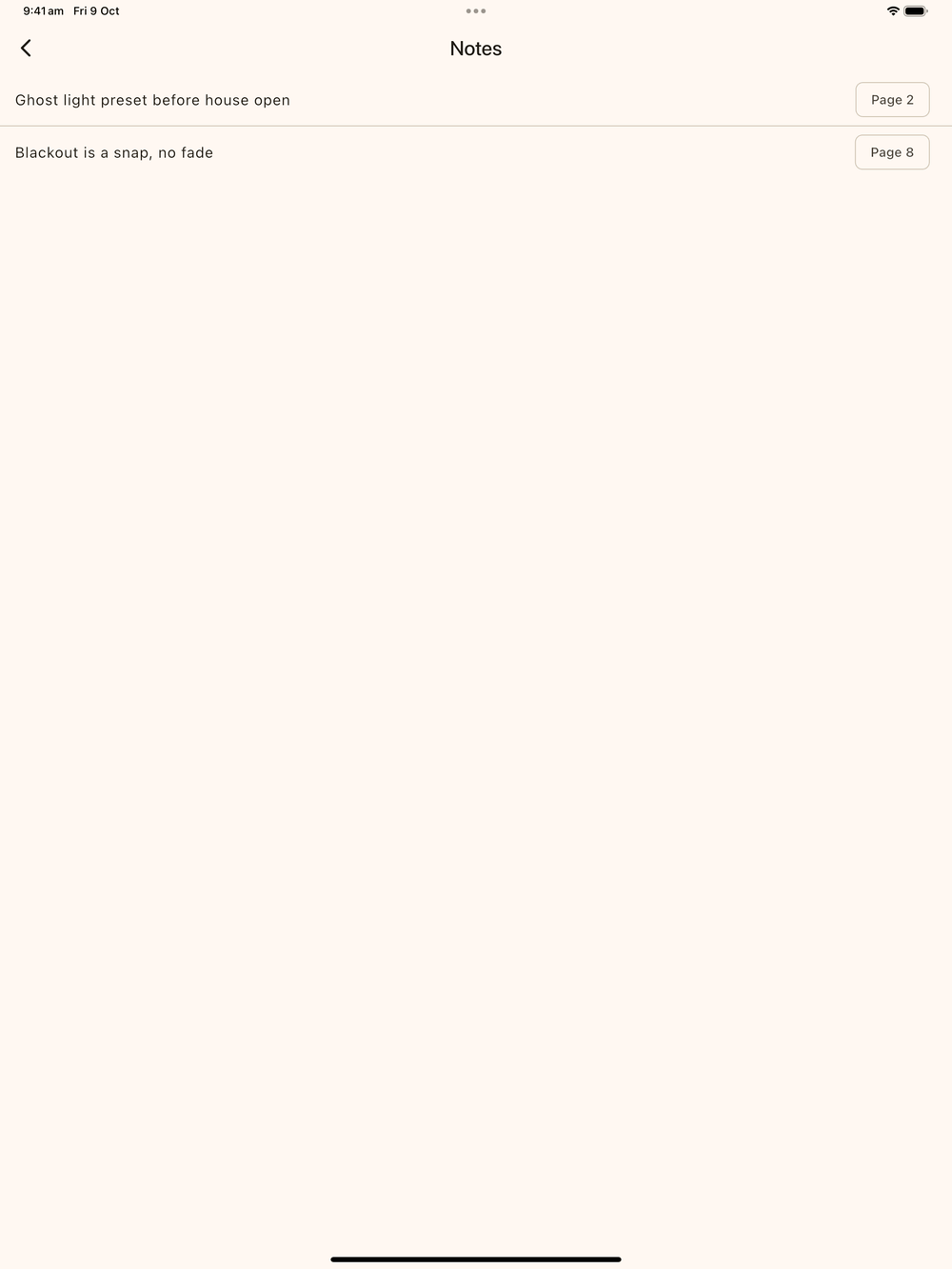
⋮ menu → Notes in the edit screen, or the Notes button in the show mode overlay, lists every note in the show in page order, each with its page number. Tap a row to jump to that page.
The Navigate sheet also has Cues and Notes tabs for quick jumps. See Navigation & Zoom.