Cues
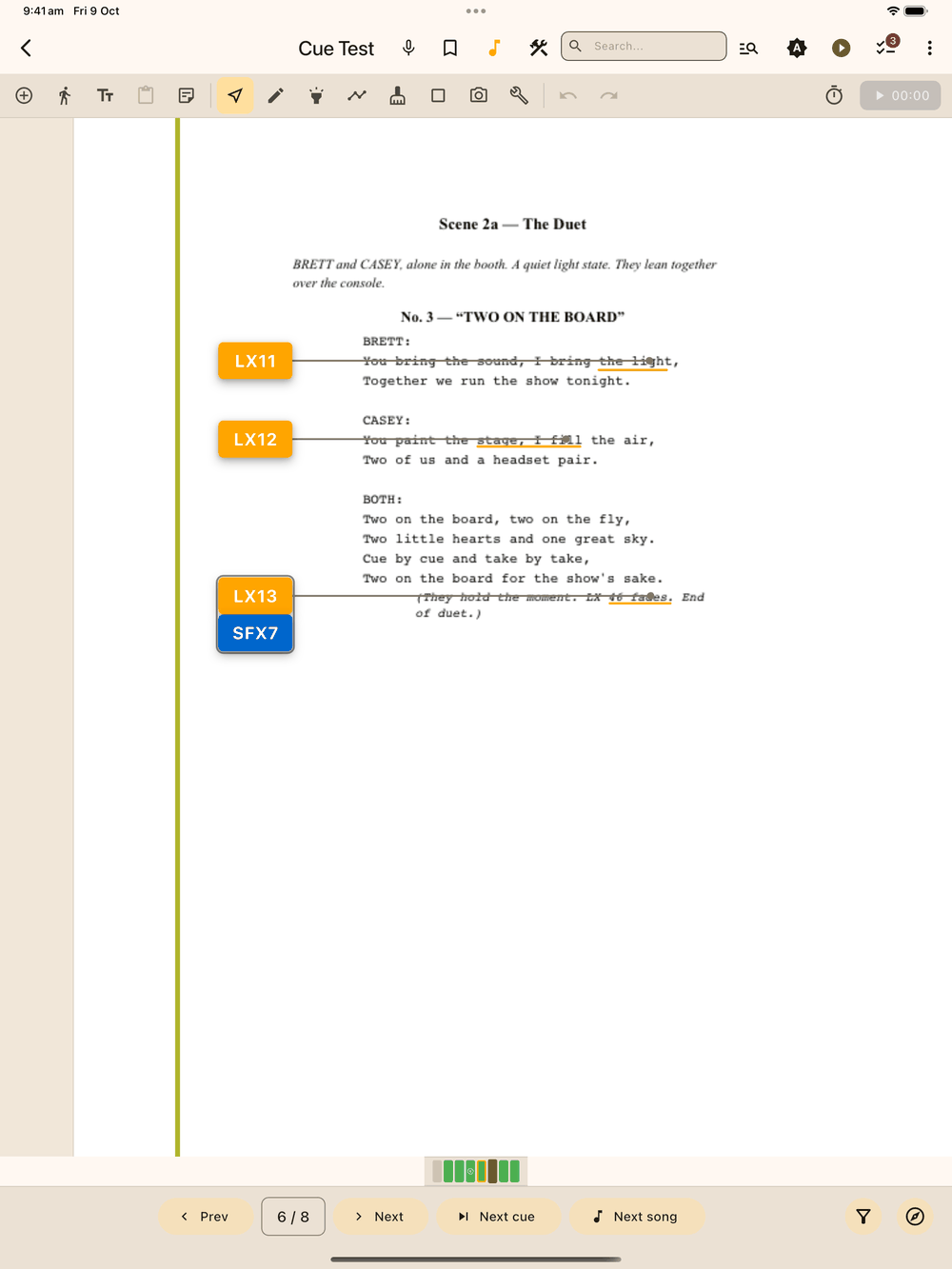
Cues are the coloured boxes you call from during a show: LX 12, SFX 3, and so on. Each cue sits at the page edge with a line pointing to its exact trigger point in the script.
Placing cues
- Tap the Cue button in the tool bar. The Add Cue panel opens as a small floating card, which you can drag by its header to any corner.
- Pick a category: LX, SFX, VID, FLYS, PYRO, AV, SPOT, MIC, HAZE, PROJ, RIG, HOUSE, COMM or TAB, or a category you’ve added yourself. Your own categories use the badge colour you pick and have no built-in fields. The panel remembers the last category you used. Each category has its own colour and its own numbering. Manage them in Setup → Cue Types, where you can rename a category or hide it from the picker if your venue doesn’t use it. A house with no flys can turn FLYS off, and a house that calls its follow spots “FS” can rename SPOT. Hiding a category doesn’t remove it from the show: cues already in that category keep it, and it just stops appearing in the Add Cue picker.
- The label fills in with the next number for that category across the whole show. Change it if you need something specific.
- Turn on Follow-on for a cue called straight after the previous one. Follow-on cues show a “→” in front of the label.
- Tap the script at the trigger point. The cue box snaps to the page edge (see Settings for which side), the line anchors where you tapped, and the panel moves on to the next number so you can keep going.
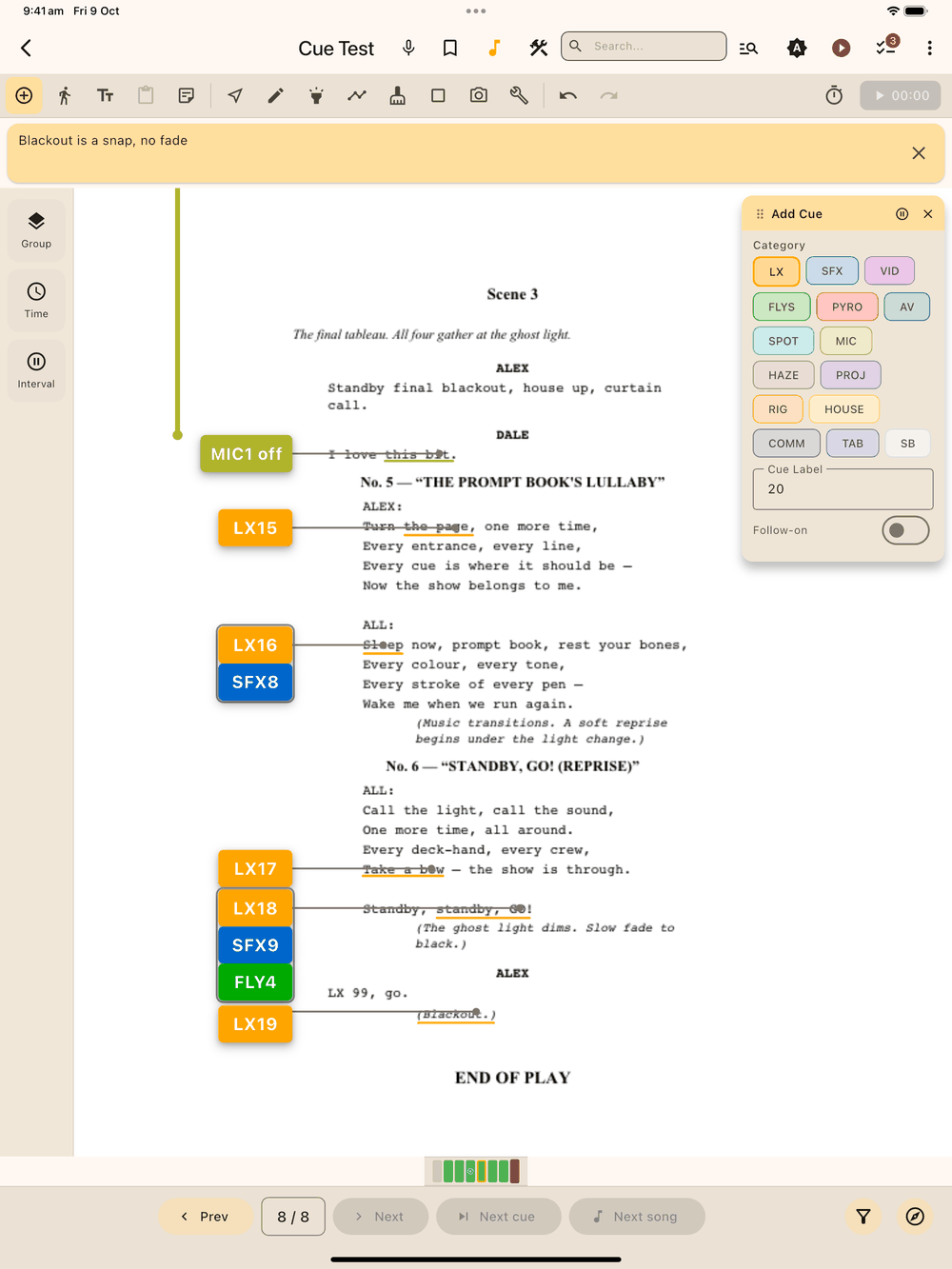
The first time you place a cue, a card at the top of the page reminds you to tap the script. Tap Got it and you won’t see it again. The panel stays open so you can place cue after cue. Close it with ✕ or by tapping the Cue button again.
Docking the panel
Drag the panel by its header. When you let go it snaps to the nearest of 8 spots around the edge (the four corners, top-centre, bottom-centre, left-centre and right-centre), and it opens there next time. At top-centre or bottom-centre, Add Cue switches to a flat layout: the category chips fill one row along the top, and a second row holds the cue label, Follow-on, and for SPOT and MIC the on/off/X buttons. Everywhere else it keeps the taller single-column layout.
Word anchors
If your tap lands on a printed word, or close enough to it with a stylus, Lx1go marks that word in the cue’s category colour: orange for LX, blue for SFX, and so on. It’s the same habit calling scripts use to point at the trigger word. You place the cue as normal and the mark appears by itself.
Short words like “GO” or “the” would get a tiny mark, so Lx1go also marks the words just before them on the same line until the mark is about 8 letters wide, or until it reaches the start of the line. The cue is still anchored to the word you tapped. Only the mark is wider.
The Word highlight setting on the cue’s text style decides how the word is marked:
- None: no mark, just the connecting line.
- Line: a thin underline under the word. This is the default, and it’s quiet enough to sit alongside your pencil marks.
- Box: a thin outline around the word. Easy to spot on a busy page.
- Highlighter: a see-through coloured fill behind the word, like a highlighter pen. The boldest of the four.
Set it once in Setup → Styles on the style that category uses, and every LX cue (or SFX, or whichever) in the show changes to match.
Drag the end of a cue’s connecting line onto a different word and the mark moves with it. If you leave the end in blank space with no word nearby, there’s no mark, just the line. Cue groups and blocking get word highlights the same way. Timestamps don’t.
A group has one word highlight, in the style and colour of its lead cue. Unless you choose one, the lead is the first LX cue in the row, or the first cue if there’s no LX. So a row of SFX 4 and LX 12 marks the word in LX colours. To use a different cue, tap it and press Use for word highlight in the Group section of the selection bar (see Arranging a group).
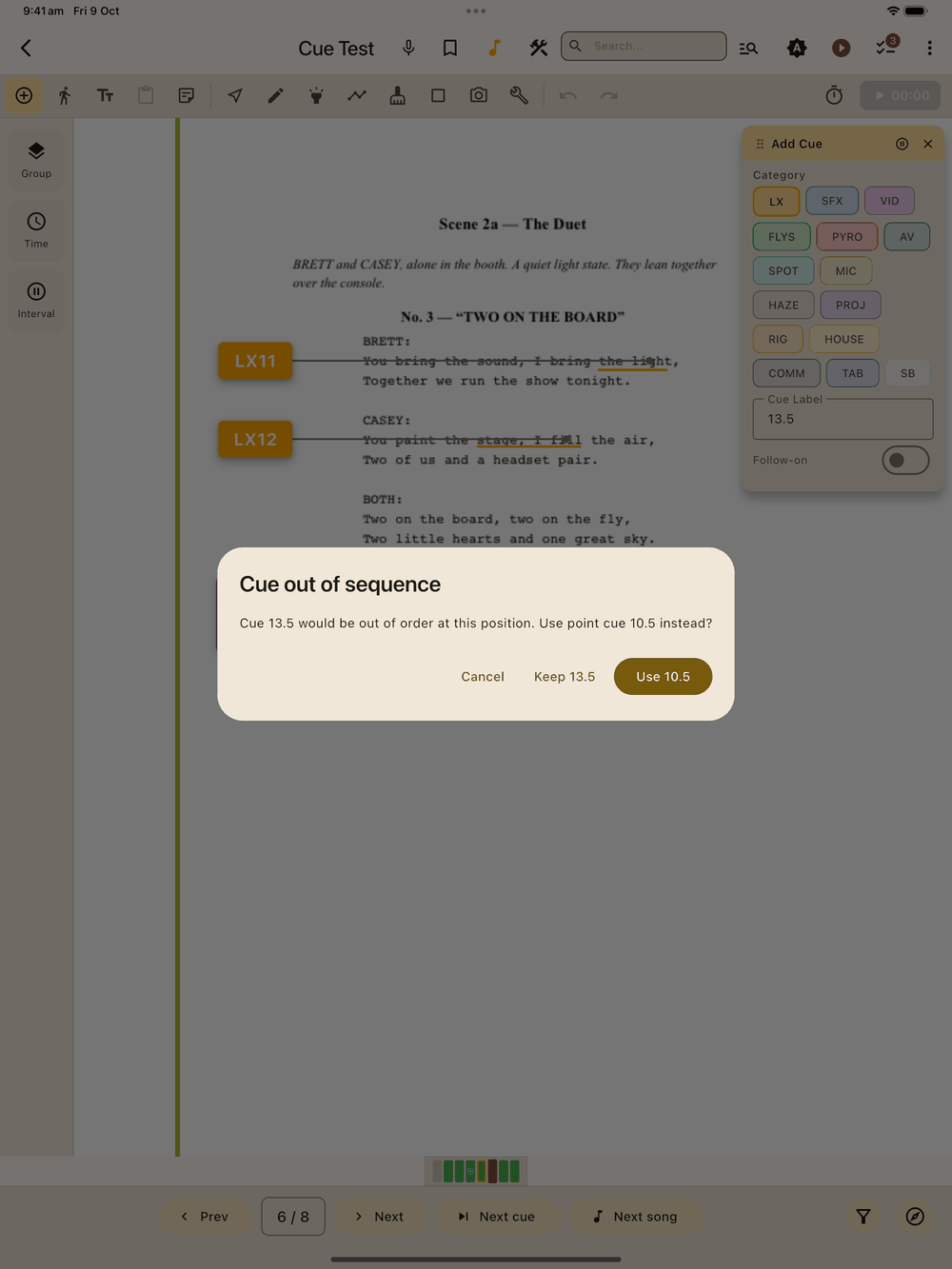
Out-of-sequence warnings
If you place a cue where its number would break the top-to-bottom order on the page (say, cue 6 between cues 1 and 2), Lx1go offers a point cue (e.g. 1.5), or you can keep the number or cancel.
Fixing a placed cue
Picked the wrong category, or forgot follow-on? Tap the cue on the page to select it, change the panel, and tap Update Selected . The cue keeps its number, its height on the page and its connecting line, and snaps back to the page edge. This works on a single cue, not on a cue inside a group.
Panel controls
- Pause stops tap-to-place so you can select and pan normally. The panel stays open with your settings. Tap to carry on.
- To take back a placement, use Undo in the tool bar.
- If you tap an existing element while placing, Lx1go selects it for editing rather than dropping a new cue on top. Your next tap somewhere else just deselects it and doesn’t place anything.
- A cue is placed when your finger lifts, not when it touches down. If you bring in a second finger to pinch-zoom while Add Cue is open, the tap is cancelled and the page zooms, so you don’t get a stray cue.
- A tap in the gutter (the margin outside the show’s left and right axes) never drops a new cue. If it lands near an existing element it selects that, otherwise nothing happens. New cues only go in the text area between the two axes.
Grouped cues
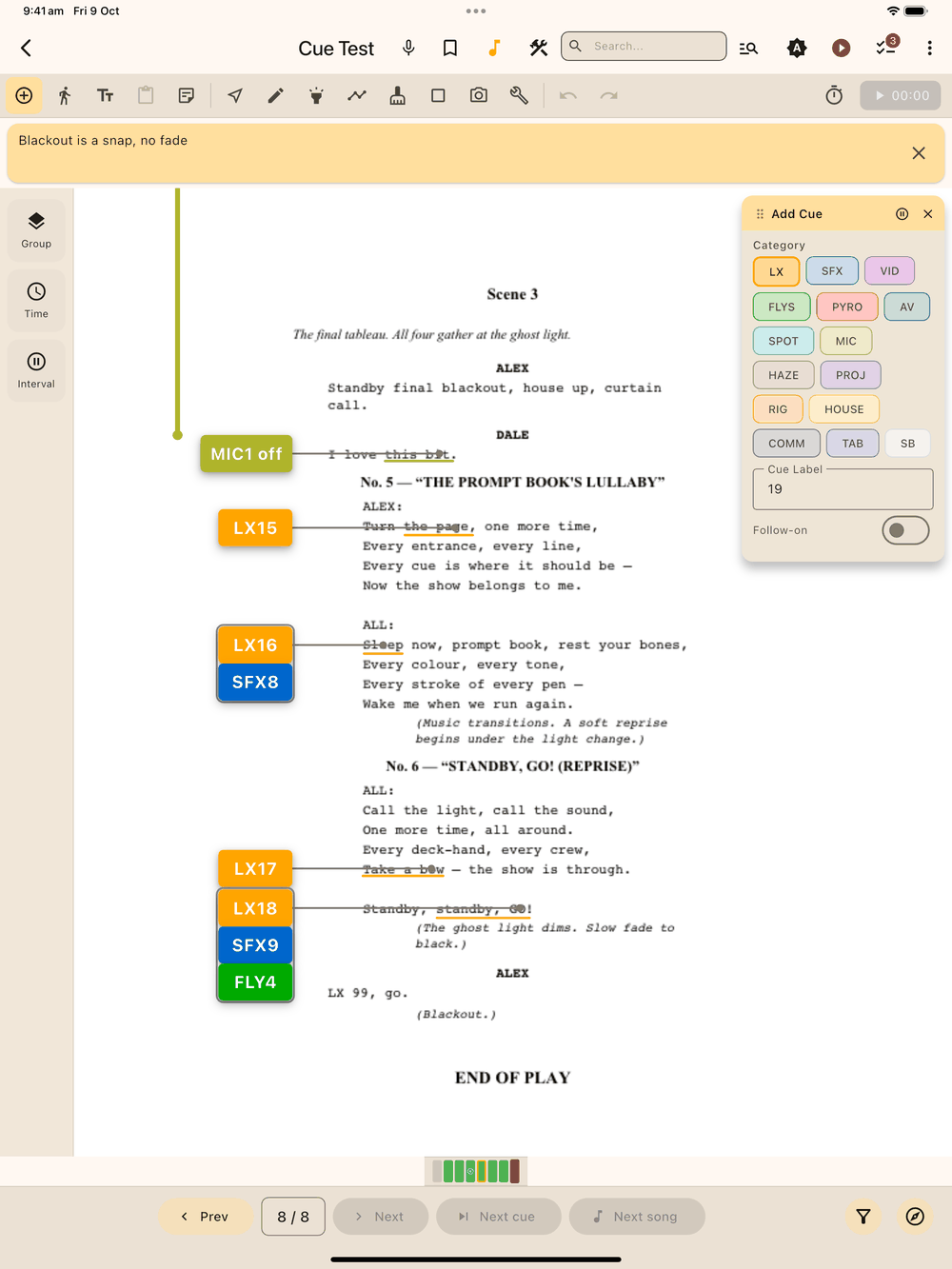
Cues that are called together, such as LX 2 + SPOT 1, GO, live in a cue group. Making a group, choosing the lead cue and moving cues in and out of a group are all on Cue Groups.
Compact view
With Compact view on (Setup → Settings), each cue is drawn as a slim dark strip with its name in its cue colour, sitting against the script like a normal cue. If the cue’s trigger or details are set to Visible, they appear on small lines just under the strip, for example “Go now” · Cold blue wash. Standby cues look the same as always.
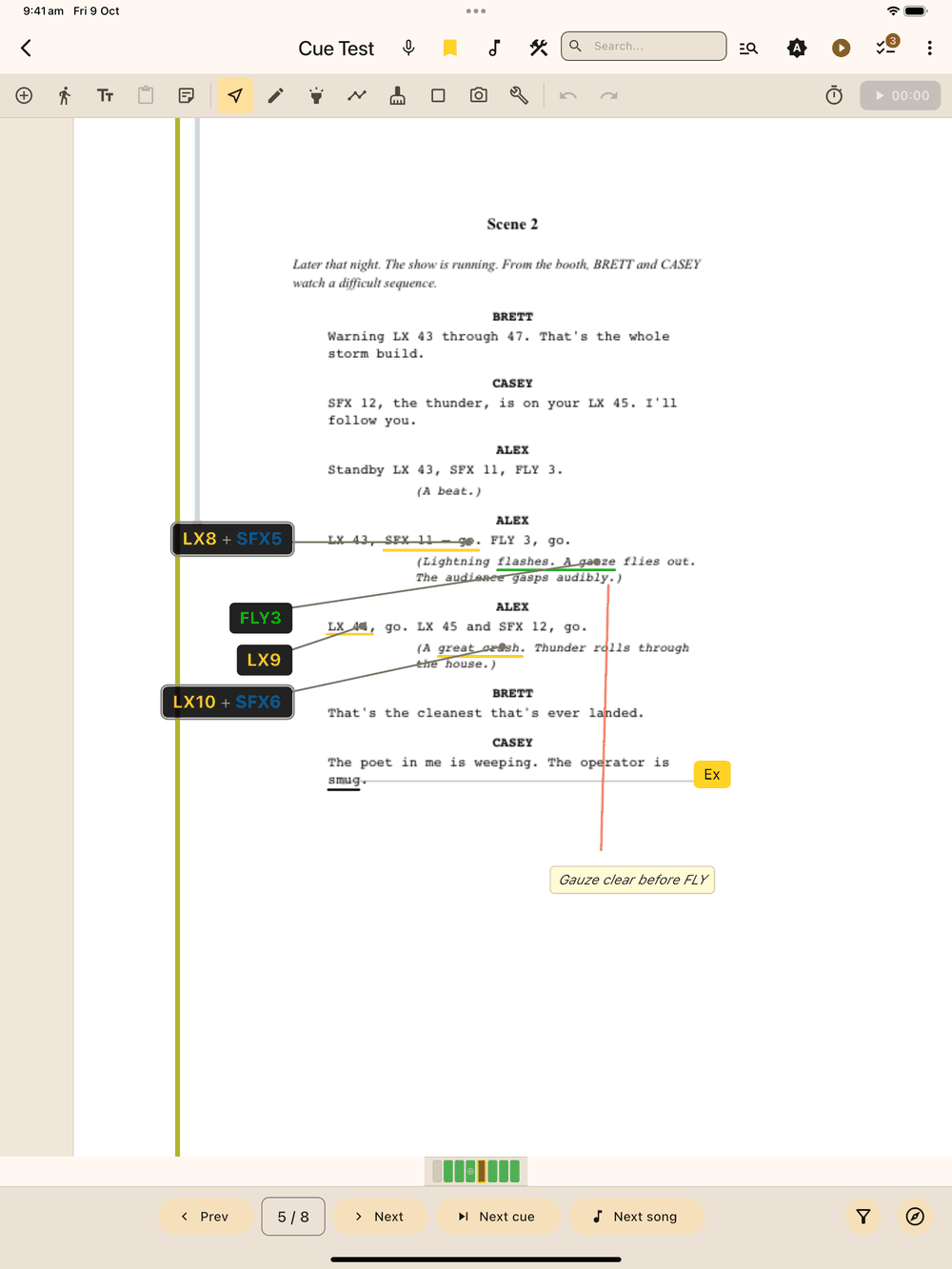
A cue group is one strip, for example LX 1 + FLY 10 + SPOT 1, with the thin grey frame every group has. If the margin is too narrow for the whole strip, it carries on to the next line after a +. Each cue’s trigger and details get their own line under the strip, in that cue’s colour, so you can tell which line belongs to which cue. Very dark cue colours are lightened a little so you can still read them.
Long names, triggers and details wrap onto extra lines rather than being cut off, and they never run into the script. A cue you’ve moved into the script itself wraps to the width of its normal box.
- Selecting: tap a strip to select the cue. In a group, tap a name to pick that cue, or anywhere else on the strip to pick the whole group. You can also pick a cue in a group from the list in the bottom bar.
- Moving: drag a strip straight up or down and it keeps its place against the script. If you drag it sideways, it stays in whichever margin you drop it in, and the normal box will still fit there when Compact view is off.
- Size: there are no resize handles in Compact view, because the strip sizes itself to its text.
- Show mode: tap a strip to step through stand by, go and complete as usual. The border changes colour at each step, and tapping a group calls the whole group. Crew “done” ticks for single cues in a group don’t show on a strip.
- Page filter: hidden cue types drop out, as usual.
Compact view only changes how cues look on screen. Your cues and their positions don’t change, and PDF exports and thumbnails always show the boxes.
Editing cues
Tap a cue to select it. The selection bar at the bottom has Edit , Copy , Align to gutter , Delete (asks first) and ✕ to clear the selection.
If the cue is in a group, the group keeps its outline around the whole row, and the cue you tapped is picked out inside it with a tinted fill, a thicker border in the accent colour, and resize handles on that cue only. That way you can see exactly which cue Edit, Copy and Delete will act on.
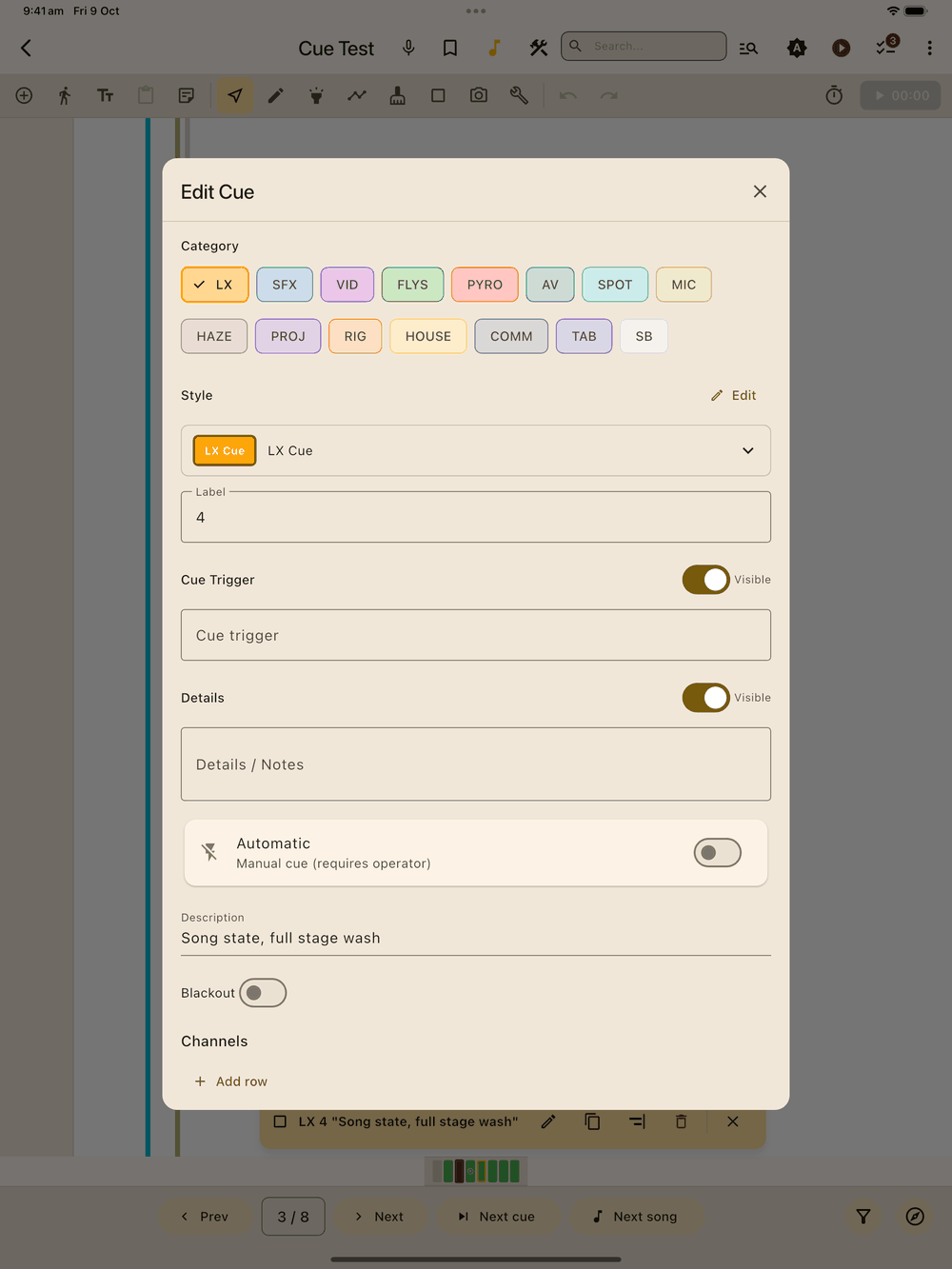
Tap Edit, or double-tap the cue, to open the Edit Cue panel:
- Category and label: change the cue’s colour or number.
- Style: the text style the cue uses. Tap to pick another one. Edit changes that style for every cue that shares it.
- Cue Trigger: the spoken line the cue goes on, with a Visible switch to show or hide it under the cue box on the page.
- Details / Notes: what the cue actually does (“Cold blue wash”), with its own Visible switch.
- Automatic: for cues fired by a system rather than called.
- Connecting Line: on or off. The line is always straight, and its opacity comes from the cue’s text style.
- Delete : removes the cue after you confirm. You can undo it.
Copy and paste
Need the same cue on another page, or in a different show? Tap the cue to select it, then tap Copy on the bottom menu bar. If you select a whole cue group, Copy takes the group and every cue in it.
Go to where it belongs and tap Paste in the tool bar (under More tools on narrow windows), or press and hold an empty part of the page and pick Paste from the menu. Then tap the script where the cue should go. A finger, S Pen or Apple Pencil all work. As with placing a new cue, tap the text: a tap in the gutter is ignored and Lx1go waits for another tap.
The pasted cue keeps its category, label, trigger, details and style. Its connecting line comes with it in the same shape, so if the end has landed on the wrong word, drag it onto the right one. The copy stays ready to paste again, even after you close the app, until you copy something else. Paste is greyed out until you’ve copied a cue or blocking.
If you paste into a show that doesn’t have the cue’s category, Lx1go opens the cue’s properties straight away so you can pick a category the show does have.
See Blocking to copy blocking the same way.
Per-category fields
Each cue type (LX, SFX, FLY, SPOT, MIC and the rest) has its own fields, such as channels, fly position or mic number. They’re all explained on Cue Details by Type.
The cue list
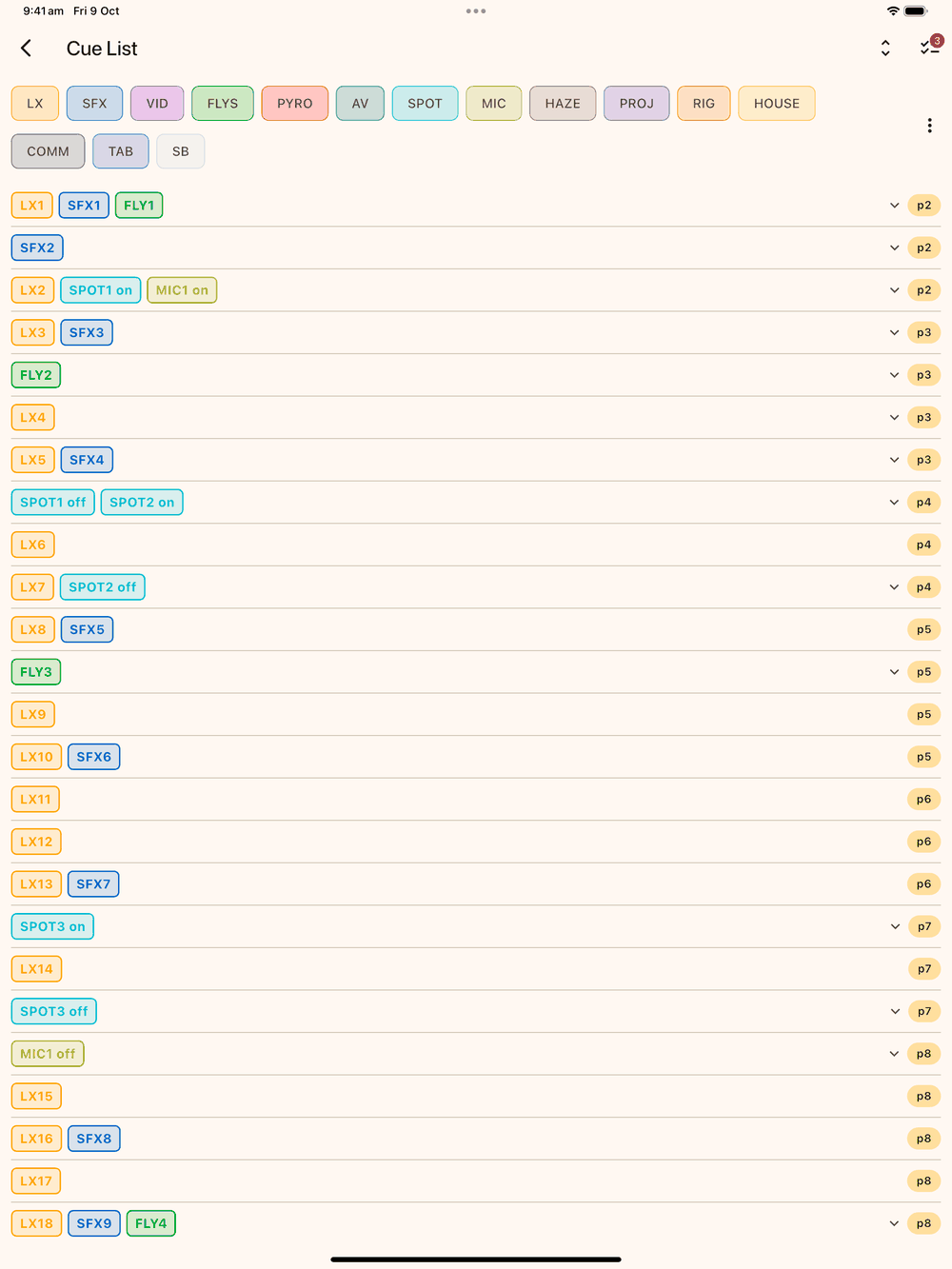
⋮ menu → Cue List shows every cue in the show in page order, with its label, colour, “when” line and page number. A cue group is one row with its cues side by side. Use the chips along the top to filter by category. You can tap several to show more than one, and All clears the filter. Tap the p chip on any row to jump to that page. To renumber a category, use ⋮ → Renumber cues… at the end of the chip row (see Renumbering cues).
Expanding rows
Tap a row, or the chevron on the right, to open it up. You’ll see the full “when” and “details” text and the cue’s own fields: LX channel rows with the gel name and swatch, FLY moves with the line piece, SPOT size, colour and action, and so on. Follow-on and Auto show as small badges. The unfold icon in the app bar opens or closes every visible row at once, which helps when you’re checking a long rehearsal report against the operator’s cue sheet at the production desk.