Exporting
You can export a show as a PDF to hand to a director, producer or reviewer. The PDF matches what you see on the tablet: page images, cues, blocking, timestamps, pen strokes, shapes and notes. Cues and blocking are real text in the PDF, so the reader can search for them and copy them, and pen strokes stay sharp at any zoom.
Start an export
From the home screen, long-press a show and choose Export .
From inside a show, tap ⋮ menu → Export .
Either way the Export screen opens.
The Export screen also has an Export backup (.lx1) button. It’s a shortcut to the full-show backup described in Backup & Sharing, for when you’re already setting up a PDF or cue-list export and want a backup as well.
Choose what to export
- Whole show exports every page from 1 to the last, in order. This is the default.
- Range lets you pick a start and end page (both included). Handy for exporting just Act 2, or the section a designer asked for.
The screen also has a Landscape switch. Leave it off for a normal A4 portrait page. Turn it on when the margins are crowded, with lots of cues and blocking stacked in the gutters or several spot trails side by side, and the page turns on its side to A4 landscape. The script image itself doesn’t rotate. It stays upright and centred on the wider sheet, so the left and right gutters get much more room and the image doesn’t shrink.
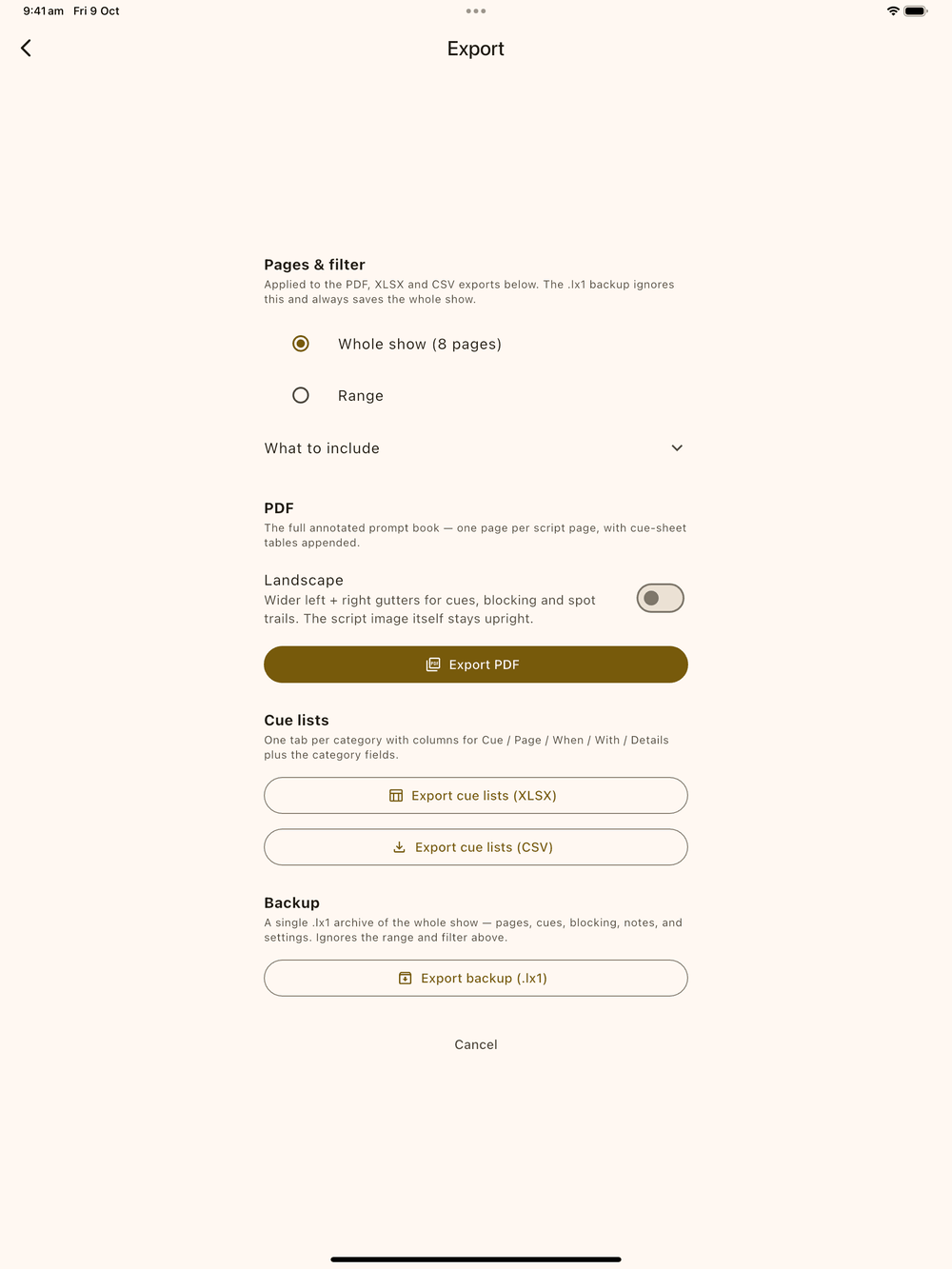
Open What to include to choose what goes on the page. There’s a checkbox each for blocking, timestamps, text notes (the boxes you place with Add Text) and page notes (the strip above the image), plus one row per cue category: LX, SFX, FLY, whatever your show uses. Everything starts ticked, so if you never open this section the export looks the same as always. Untick a box and that kind of annotation disappears from the pages and from the matching Cue List page at the end. Handing a script to the sound designer? Untick everything except SFX, and the cues and blocking notes for every other department are left out.
Tap Export PDF. While the PDF builds, the screen shows “Rendering page X of Y” and a Cancel button.
After you build the file
When rendering finishes, a Save to… / Share… / Open sheet pops up. Every export in Lx1go uses this same sheet, whether it’s a PDF, a cue-list spreadsheet or a backup:
- Save to… lets you pick a folder on your tablet. The suggested
filename is
<show name> — <date>.pdffor a whole-show export, or<show name> — pp <from>-<to> — <date>.pdffor a range. - Share… opens the system share sheet so you can email it, AirDrop it or send it straight to another app. That’s useful for getting the plot to the LD without leaving Lx1go.
- Open opens the file in whatever app your tablet uses for that kind of file. If nothing can open it, you get the Share sheet instead.
If you close the sheet without picking anything, nothing is saved. The file only exists once you choose Save, Share or Open.
If something goes wrong building the file, the screen shows the error and a Back to options button so you can try again.
What appears in the PDF
- Every page in your chosen range, as a full-page image with your annotations on top.
- Any notes you’ve added to a page, in a blue strip above the page image, the same as in the app.
- After the last page, one Cue List page per cue category (LX, SFX, FLY, …). Each has its own table of every cue of that category in the range, with the page number, when it fires, and details. Categories with no cues in the range are skipped, so a lighting-only show only gets the LX page. If a cue’s category was deleted after the cue was placed, the cue goes on a final “Other Cues” page so it isn’t lost. If the range has no cues at all, you get a single page reading “No cues in this range.”
- If a page’s image can’t be read, a placeholder page goes in its place and the export carries on. The finished screen tells you how many pages were affected.
Export cue lists as a spreadsheet (XLSX or CSV)
The same Export screen has two more buttons under Export PDF: Export cue lists (XLSX) and Export cue lists (CSV) . Both give you the same cue data as the Cue List pages at the end of the PDF (cue number, page, when it fires, details, and every field that category tracks) as a spreadsheet. When they finish, both open the same Save/Share/Open sheet described above.
- XLSX builds one workbook with a tab for each cue category: LX,
FLY, SFX, SPOT, MIC, AV, VID, or whatever custom categories your
show uses. Each tab’s header row is bold and stays in place as you
scroll, and the tab colour matches the category’s colour on the
page. The columns depend on the fields each category was set up
with, so MIC’s tab has
StateandMic #columns, LX’s has aChannelscolumn, and so on. - CSV exports one category at a time. Tap the button, pick a
category from the list, and you get a single
.csvfile for that category. For LX and FLY, tap the button twice.
Both follow the What to include panel above them, just like the PDF. Untick a category there and it’s left out of the XLSX workbook and the CSV list. That way you can hand each department only their own cues, say the LX plot to the lighting designer without FLY and SFX cues in the way.
Filenames follow the same pattern as the PDF: <show name> — <date>.xlsx
for the workbook, and <show name> — <category> — <date>.csv for a
single CSV file.
Known limitations (v1)
- Pen pressure is averaged into one width per stroke, so strokes where you varied the pressure may look slightly different from the tablet.
- The script’s own text isn’t searchable in the PDF, though cue labels are.
- Very large shows (500+ pages) can be too much for the tablet to handle at once. If you run into trouble, cancel and export in smaller ranges.