Managing Pages
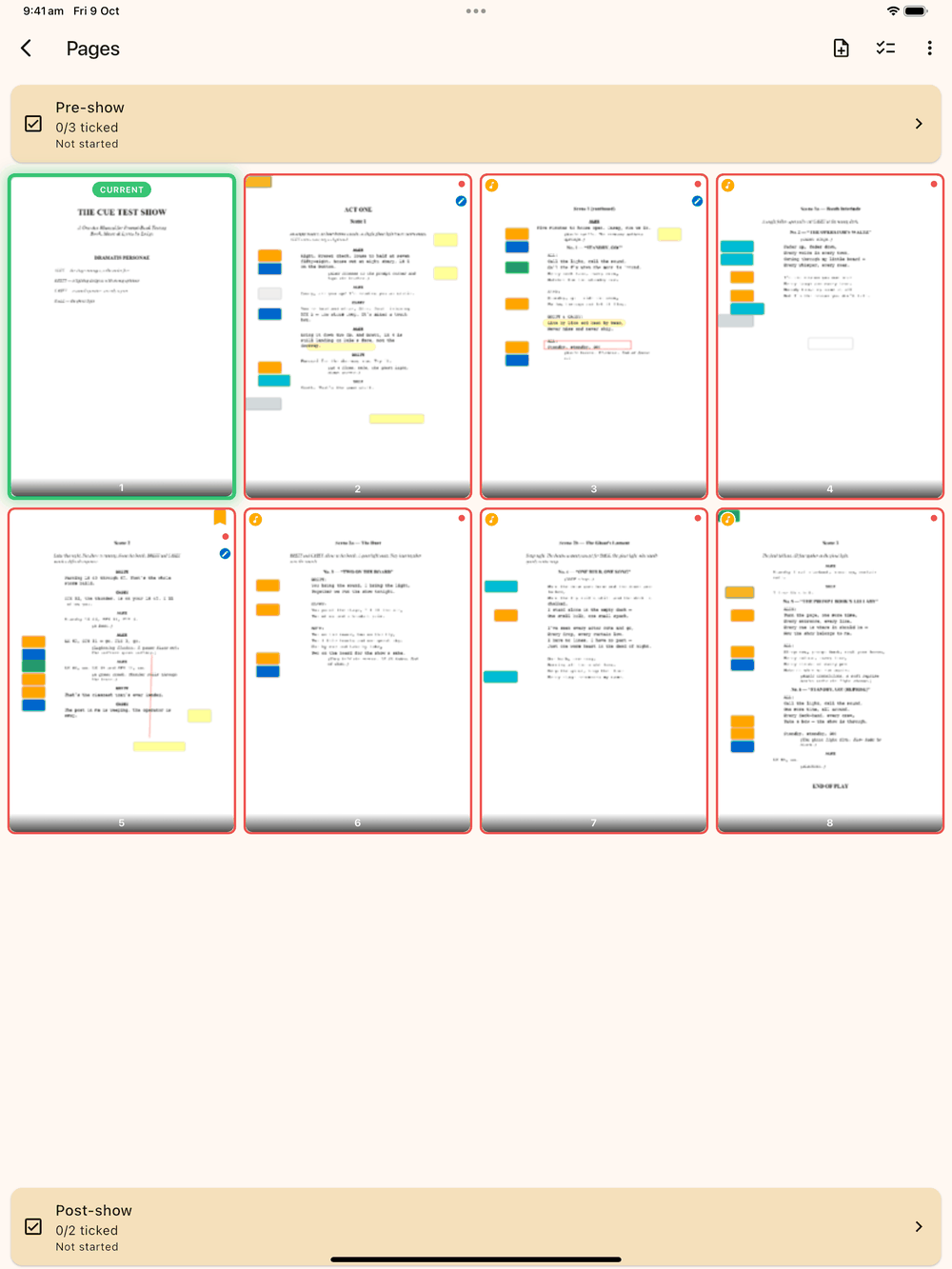
Open ⋮ menu → Page thumbnails for a grid of every page with live previews. Tap any page to jump to it in the edit screen. Small badges on each thumbnail tell you what’s on the page:
- A red border and dot means the page has cues.
- An amber bookmark ribbon (top-right) means it’s bookmarked.
- A blue pen badge means it has drawn strokes.
- An amber music-note badge (top-left) means it’s tagged as a song.
Selecting pages
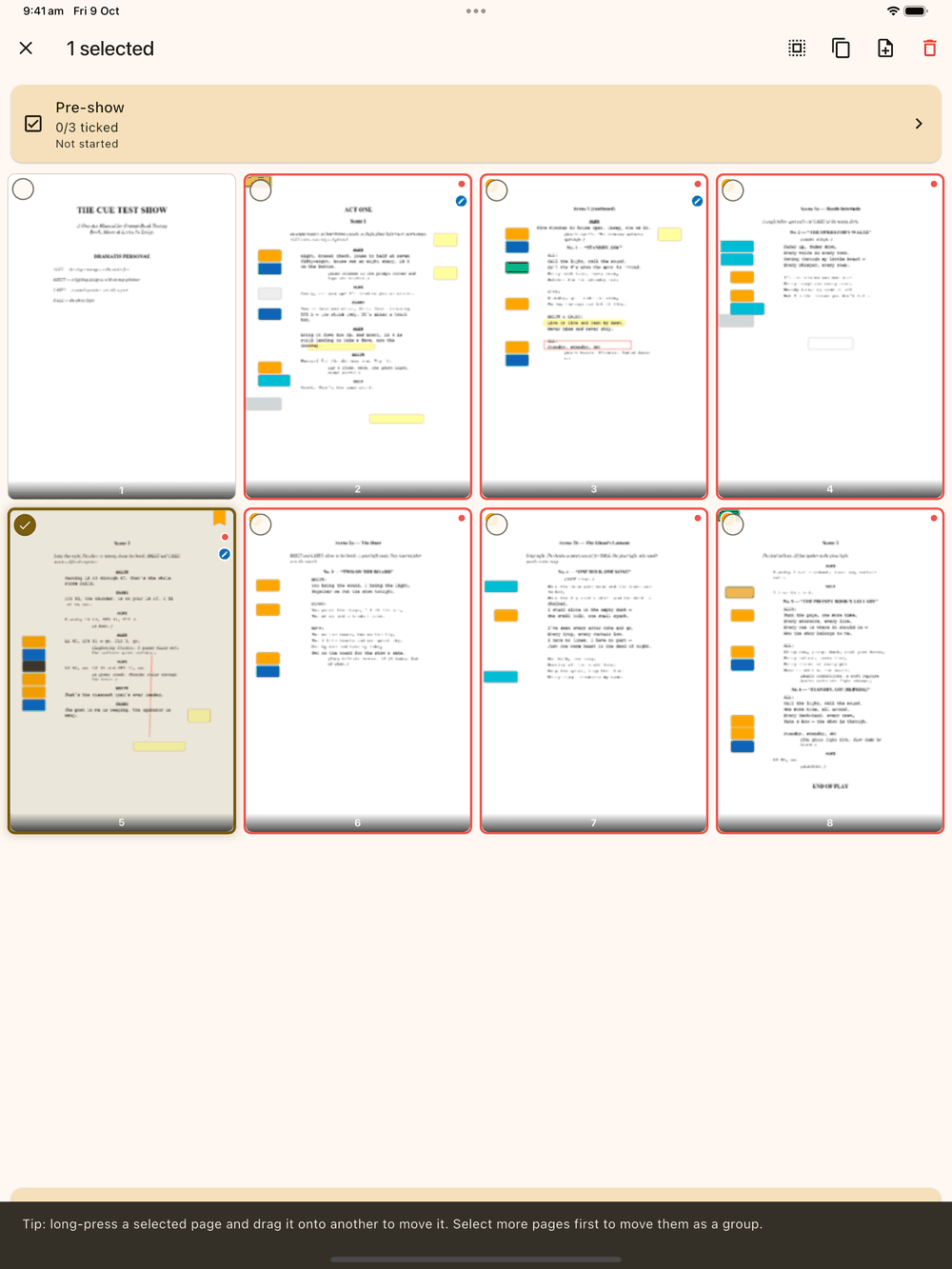
Long-press a thumbnail (or use the selection button ) to enter selection mode, then tap pages to add them to the selection. Select all is in the app bar. With pages selected you can:
- Duplicate to copy each selected page (the image and all mark-up except cues). Each copy goes in right after its original, and it works on any number of pages at once.
- Delete to remove pages. It asks you to confirm (Delete Pages), then permanently removes the selected pages and renumbers the rest, showing a progress dialog on large shows. You can’t undo this, so think about backing up the show first. A show has to keep at least one page, so you can’t delete every page.
- Add blank page after with one page selected, to insert an empty page after it (for inserts, notes pages or rewrites).
Reordering
You reorder pages in selection mode:
- Tap the select button (or long-press any thumbnail) to enter selection mode.
- Tap one or more thumbnails to check them. The order you tap them in is the order they’ll land in after the move.
- Long-press one of the checked pages and drag it to where you want it. All the selected pages move together as one block, in the order you selected them. Search text, cues, blocking, drawings, page backups and bookmarks all go with their pages.
Splitting a show
Split show in the Page thumbnails ⋮ menu divides the show in two, for example to turn a full script into separate Act 1 and Act 2 prompt books.
- Choose Split show. A banner reads “Tap the last page of Act 1” (tap Cancel in the banner to back out).
- Tap the last page you want to keep. You can’t split before page 2 or on the last page, because each half needs at least one page.
- Split Show? shows which pages stay and which move. Tap Split.
The open show keeps the pages up to the one you tapped. The rest move
to a new show on the home screen called <show name> - Act 2, which
you can rename.
Inserting a blank page
The Insert blank page button in the grid’s app bar adds a blank page anywhere. Enter the page to insert after (0 for the very beginning). With a page selected, Add blank page after does the same for that spot.
You can also do this from the edit screen without opening the grid. ⋮ menu → Add blank page inserts one after the current page, and ⋮ menu → Delete this page removes the current page once you confirm.
Duplicate a page
Select a page in the thumbnail grid and choose Duplicate. The copy goes in straight after the original, with the page image, blocking, text notes, timestamps, pen strokes, shapes, page notes and scene photos. Cues are not copied. Search still finds text on the copy.
Cues are not copied. Cues and cue groups stay on the original page only, and the copy has none. A cue belongs to one moment in the script, so copying it would mean calling the same cue twice. The idea is to reuse a beat’s blocking and drawings for the next moment, then place the cues that moment needs.
Page notes
Notes are short reminders shown in a strip above the page image. Add them with Add Page Note in the tool bar. See Cue List & Notes.
Exporting
Exporting a PDF of the prompt book, or the cue lists as a spreadsheet, is covered on its own page: Exporting.
Importing pages from another PDF
To bring pages from any PDF into the open show, open Page thumbnails (edit-screen ⋮ menu) and choose ⋮ → Import pages from PDF :
- Pick the PDF.
- Enter the pages to import, either a range like
4-6or a single page. - Enter insert after page (0 is the beginning; it defaults to the end).
- Tap Import. The pages go in at that position and everything renumbers, so importing pages 4 to 6 after page 2 puts the PDF’s page 4 at show page 3.
The dialog also has interleave modes, where the imported pages become the even or odd pages, for merging double-sided scans.
The same Page thumbnails ⋮ menu has Scan page , which scans pages with the device camera or picks images from the gallery and adds each one at the end of the show. Split show is there too.