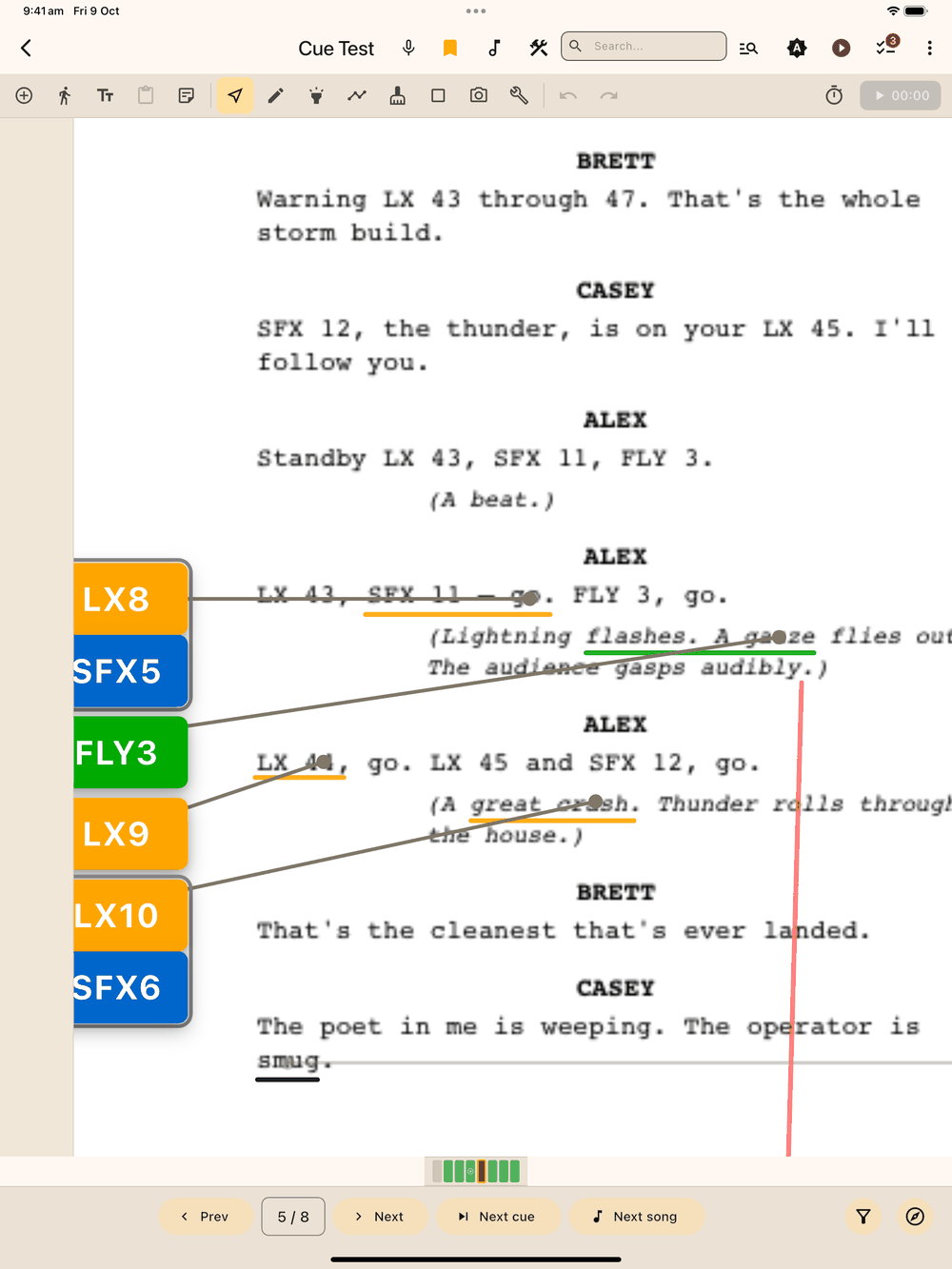
Navigation & Zoom
Turning pages
- ◀ Prev / ▶ Next buttons at the bottom step one page at a time.
- ⏭ Next cue jumps forward to the next page that has at least one cue, which helps when you’re skimming a long dialogue run for the first LX pickup. If there aren’t any ahead, a message at the bottom says “No more cued pages”.
- Tap the page counter (“12 / 159”) to type a page number.
- Tap a segment in the page indicator bar to jump straight there.
- The thumbnail grid (⋮ menu → Page Thumbnails) jumps anywhere visually (see Managing Pages).
The page indicator bar
Each segment is a page:
- Green: the page has cues.
- Amber outline: the page is bookmarked.
- Tall highlighted segment: the current page.
- Small pause symbol: the page with the interval marker.
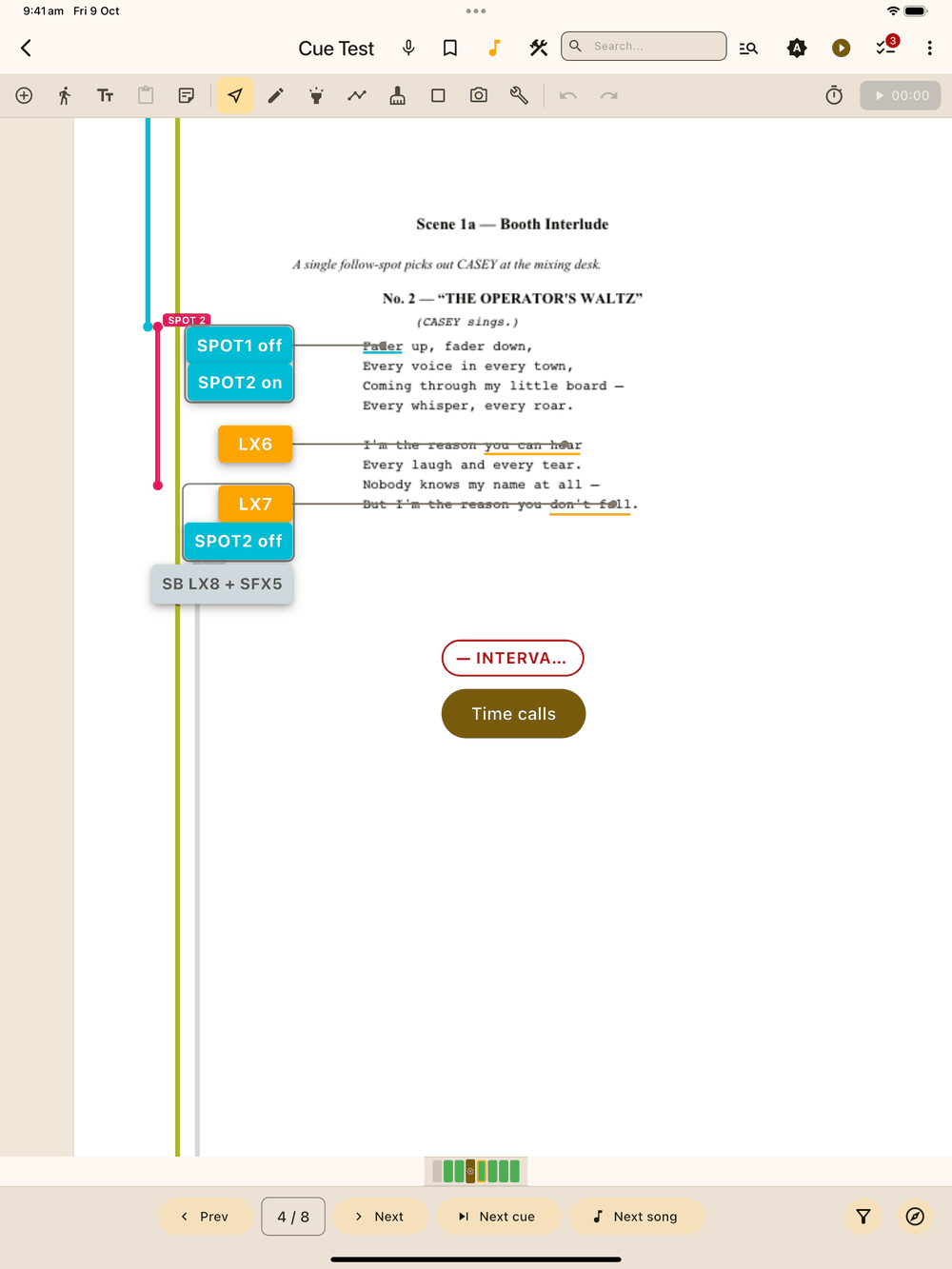
Bookmarks
Tap the bookmark icon in the app bar to bookmark the current page (it fills amber). Bookmarked pages keep their amber outline in the indicator bar, so you can jump to them in one tap. Use them for the top of each act, tricky sequences or standby points. Bookmarks are saved with the show and follow pages if you reorder them.
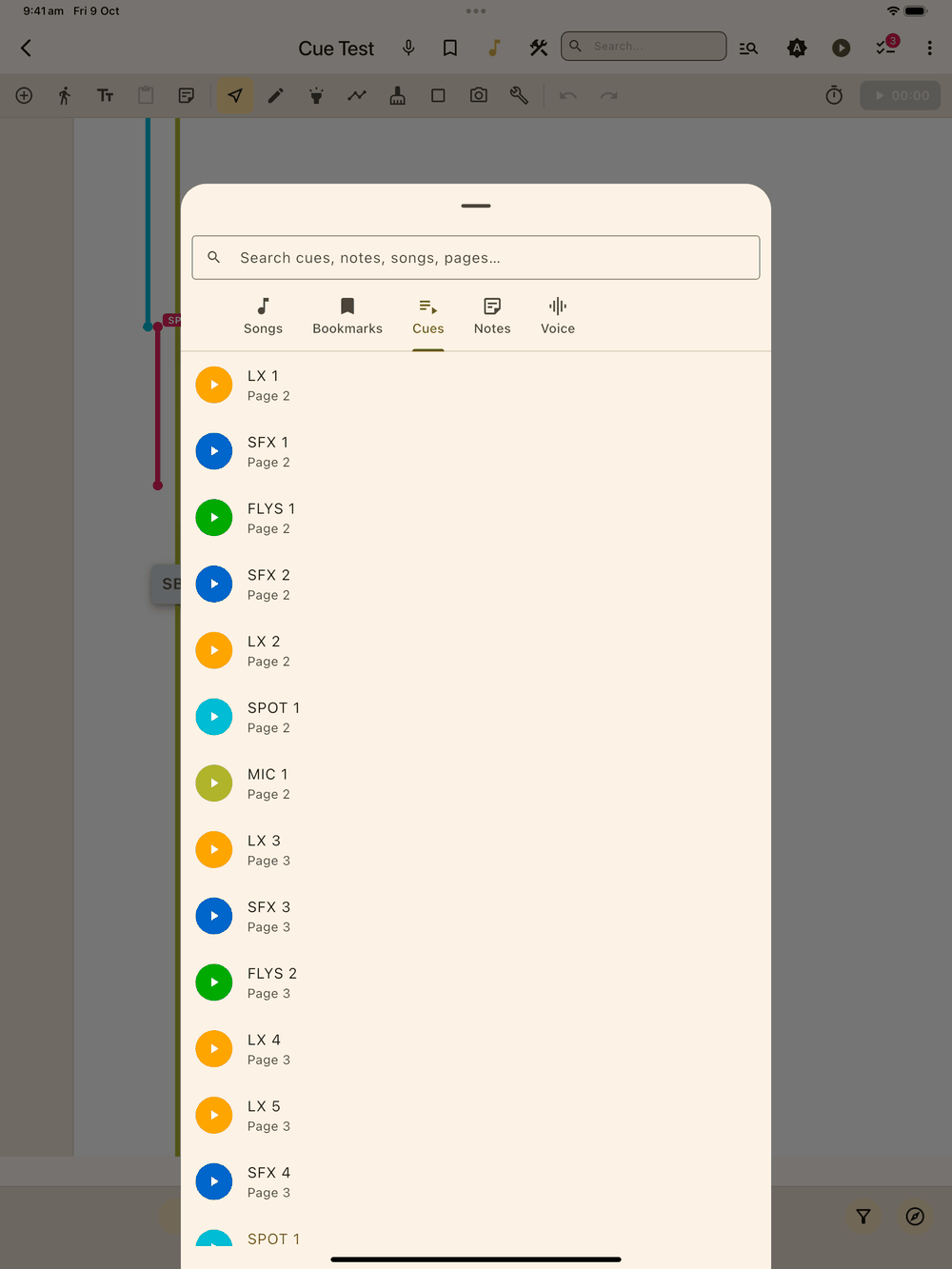
The Navigate sheet
Tap the compass button to open the Navigate sheet. It lists the whole show in five tabs, and tapping any row jumps to its page:
- Songs: every page you’ve tagged as a song.
- Bookmarks: every bookmarked page.
- Cues: every cue, in page order.
- Notes: every text note.
- Voice: every voice note, sorted by when you recorded it. Tap one to go to its page, where you can play or delete it.
Zoom
- Two-finger pinch zooms and pans in every mode, at any time (except while you’re dragging an element).
- Your working zoom carries across pages and is remembered per show: reopen the script tomorrow and you’re at the same zoom.
- Per-page zoom: in the Tools category, Zoom Save saves the current zoom and position for this page, which is useful for a busy page you always want framed the same way. When you land on that page it uses its saved zoom. Zoom Restore puts the saved zoom back by hand (or resets to 100% when the page has none saved).