Scene Photos
Every page can have its own reference photos: the set at the top of
the scene, blocking snapshots, costume close-ups, anything you want to
remember about that moment in the show. Photos are stored with the
page and go with it in .lx1 backups.
Opening the photos sheet
Tap Photos in the tool bar (between Shape and Tools), or Tools → Photos. On narrow windows the tool-bar button moves under More tools .
When the current page has photos attached, the button switches to a
filled camera with a small count badge (9+ for ten or more), so
you can see at a glance which pages have reference material. On narrow
windows the badge shows on the More tools button instead.
Adding photos
The sheet has two buttons for the current page:
- Camera takes a fresh photo from the tablet camera. The first time, the system asks for camera permission.
- Gallery picks an existing image from the device library.
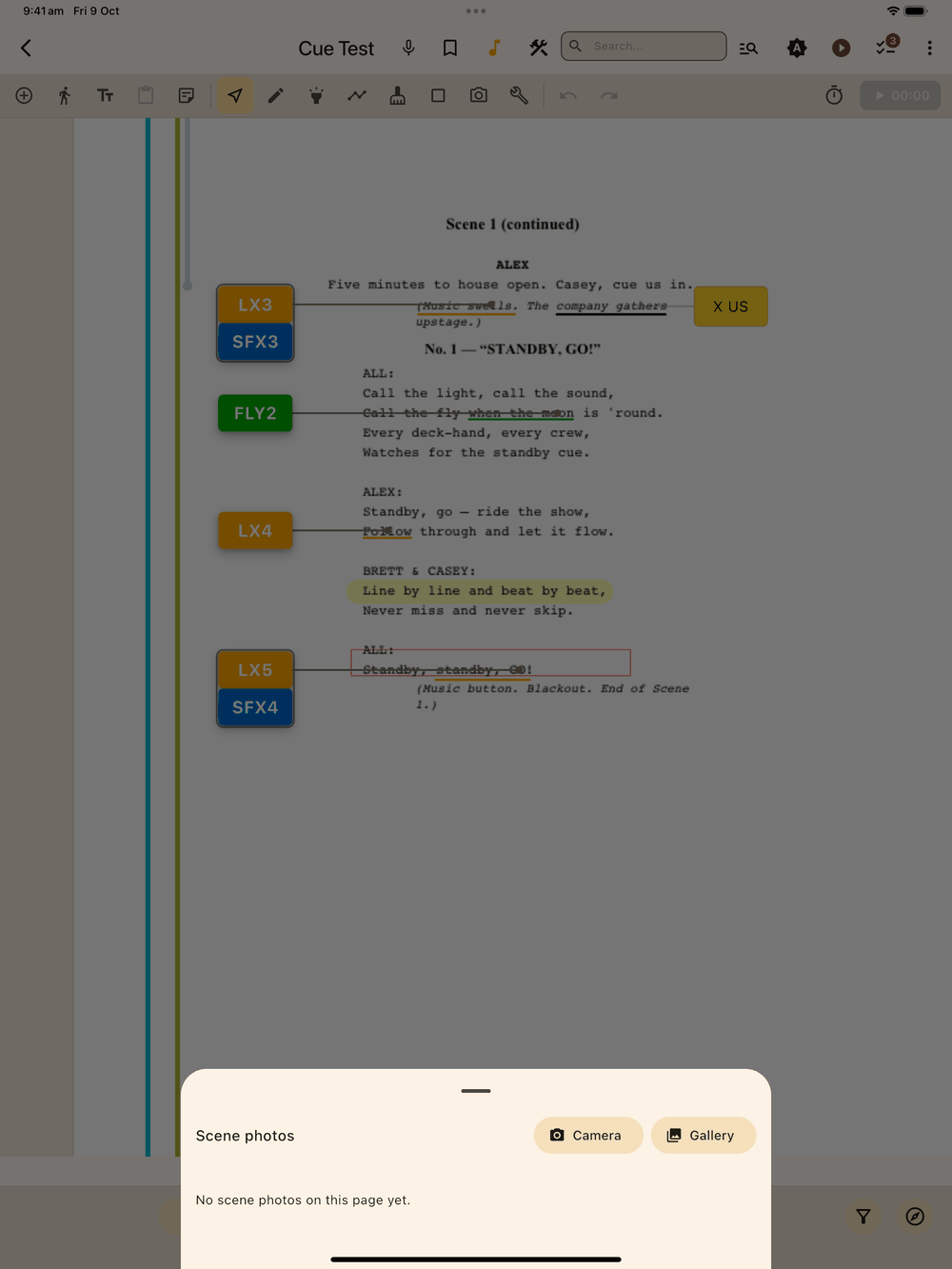
Newest photos appear on the left of the strip.
Managing photos
- Tap a thumbnail to open the full-size viewer. Pinch to zoom in.
- Long-press a thumbnail (or use the toolbar in the viewer) for the
actions menu:
- Edit caption adds a short label so you know which look is which at a glance (e.g. “Act 1 opening”, “Interval reset”).
- Delete removes the photo from this page and from the tablet. It asks you to confirm first, and you can’t undo it from inside the sheet.
Storage & backup
Photos move with their page when you reorder pages, are copied when
you duplicate a page, and are included in .lx1 backups automatically.
PDF exports leave photos out, because they’re a rehearsal-room
reference and don’t belong in the printed prompt book.
Show mode
Photos are only available in edit mode. During a live show the Tools panel is hidden and photos stay out of view, so nothing gets in the way while you call the show.