Shapes
Shapes are filled or outlined figures (rectangles, circles, triangles, diamonds, stars and hexagons). Use them to box off sections, cover cut text, or colour-code the script.
Placing shapes
Select the Shape category. Placement starts immediately with the current shape type and your first shape style, so you can draw at once:
- Pick a shape type at the top of the left panel: rectangle , circle , triangle , diamond , star or hexagon . Each button shows the exact outline you’ll get on the page (the hexagon has flat top and bottom edges). It takes effect straight away, keeps the style you’re using, and stays picked until you close the app (it starts as Rectangle each time).
- Pick a style: Whiteout (a plain white, borderless block for covering cut lines; it stays white even in dark mode) or any of your saved shape styles.
- Drag on the page to size the shape, or just tap to drop one at a default size.
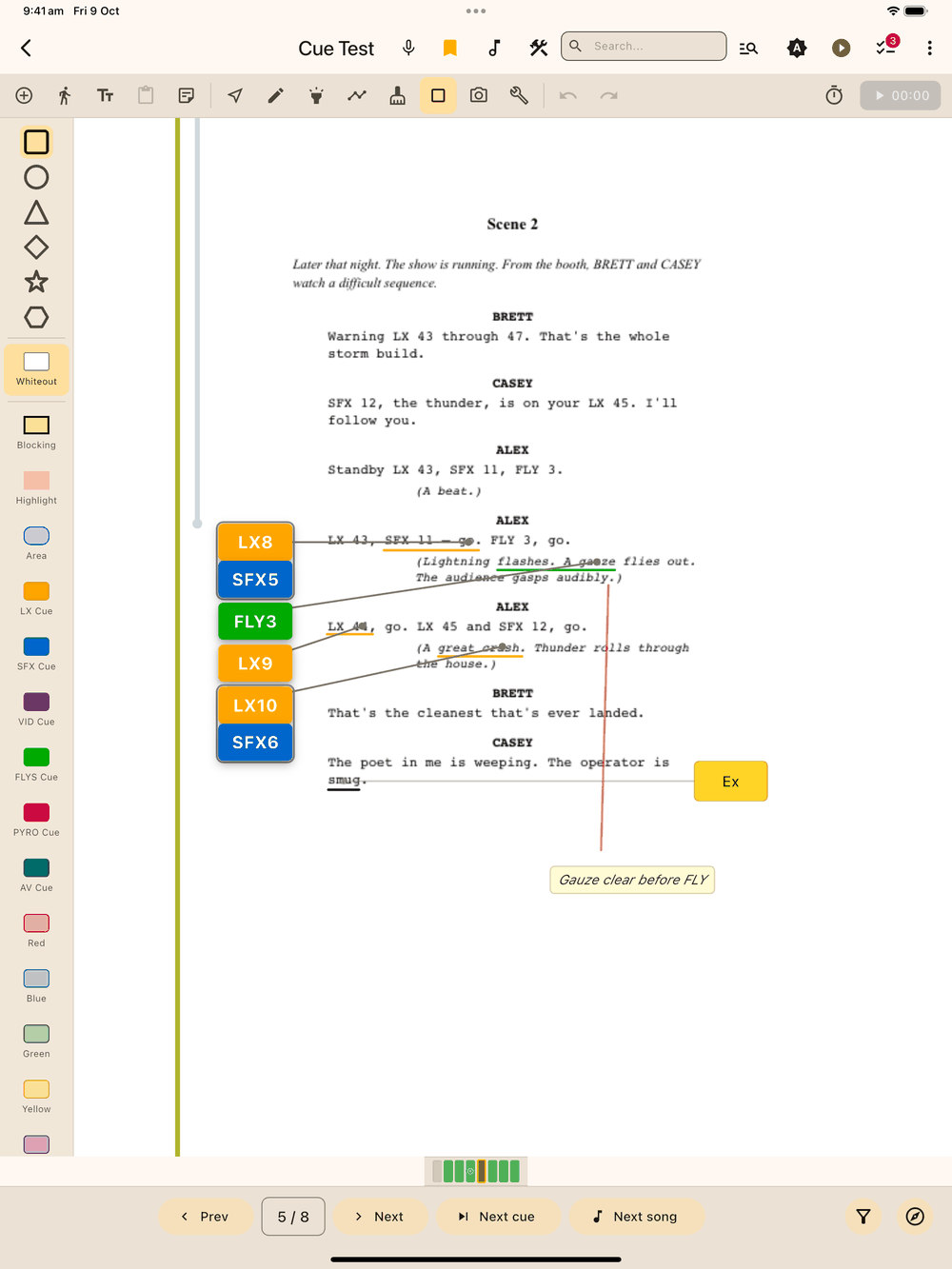
Placement stays active after each shape, so you can draw several in a row. The first time, a card at the top of the page reminds you to drag; tap Got it and it won’t show again (the Shape tool stays ready to draw). To stop placing shapes, pick another category or tool. If the Shape category is highlighted but nothing draws, tap Shape again to pick the tool back up.
Like the drawing tools, shapes are drawn with the stylus (S Pen or Apple Pencil) only, unless you turn on the Touch toggle at the bottom of the panel.
Editing shapes
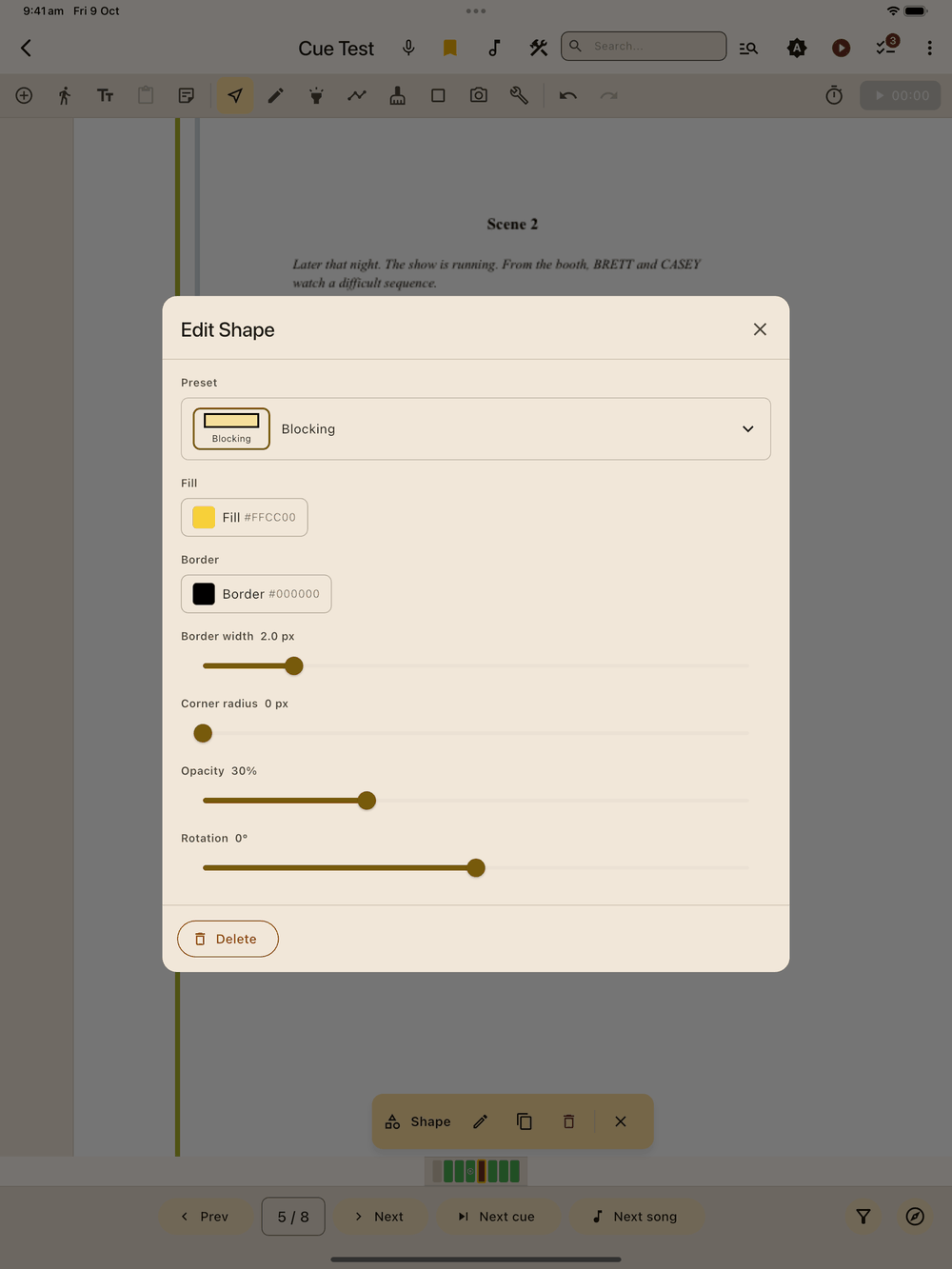
Switch to the Select tool and tap a shape to select it. Drag its body to move it, or drag any of the eight handles (corners and edge midpoints) to resize. The bottom menu bar has Edit , Duplicate , and Delete .
Edit opens Edit Shape, where you can pick a shape style Preset or adjust the Fill and Border colours, Border width, Corner radius, Opacity and Rotation.
Exported PDFs draw every shape with its real outline, triangles, diamonds, stars and hexagons included, using the same fill, border, opacity and rotation as on screen.
You manage shape styles (fill, border, opacity, corner radius) in the Setup screen. See Styles.