Show Clock
The Show Clock is your call sheet for one performance: curtain up, interval, Act 2 up and the final curtain, plus the pre-show and interval calls that lead up to each of them.
It runs off what you do on the night. There’s no fixed running time to count down from. Act 1 lasts from “Curtain up now” to “Interval starts now”, however long that turns out to be, and the interval works the same way. The only length you ever set is a default for the interval, which suggests a planned Act 2 up time the moment the interval starts. You can nudge that planned time whenever the interval runs long or short.
Opening the screen
You don’t need to open it for a normal show. Page 1’s panel sets curtain up and starts the timer, show mode prompts you at the interval, and the last page’s panel ends the show.
The screen opens when you tap a call alarm’s notification (see Pre-show and interval calls below).
Setting curtain up
Curtain up is set from the small panel in the margin of page 1, in the edit screen or in show mode:
- Curtain up time offers this show’s usual curtain times as big buttons, plus Other time… for anything else. Pick one earlier in the day and Lx1go works out the pre-show calls below and sets their alarms. Page 1 then shows a Calls list counting down to each one. You can change the time until the show starts.
- Start timer starts the show timer and records the actual curtain up as the moment you pressed it, replacing the planned time.
You set the usual curtain times for the show in Setup (see below). “Starting and ending the show” in the Edit screen help covers the rest of the panel, including Reset times.
Marking the interval
Mark where the interval falls while you’re editing the script, and show mode will prompt you when you reach that page, so you don’t have to stop and mark it mid-run.
Placing the marker
While placing a cue or a piece of blocking, the left rail gains a third button, Interval (a pause icon), alongside Time. Tap it, then tap the page where the interval falls. A bold red — INTERVAL — pill appears there, with no connecting line, and you go back to the placement you were in. Each show can have only one marker. Placing a second asks “An interval is already marked on page N. Move it here?” If you confirm, the old marker is deleted and the new one dropped. If you decline, the placement is cancelled.
The show-mode banner
When curtain-up mode reaches the page with the marker, and the interval hasn’t started yet, a red banner reading “End the Act — tap to start interval” stays at the very bottom of the screen. Tapping it does the same as “Interval starts now” on the Show Clock screen: it records the real time and suggests a planned Act 2 up. Then the banner disappears. In the edit screen, the Time calls button under the interval marker does the same. You get each of these once per performance. After Act 2 is up they stay hidden, so a stray tap can’t restart the interval.
The interval panel
Once the interval has started, a small panel appears in the cue margin beside the interval marker, in the edit screen and in show mode.
It shows when the interval started and when Act 2 is due up. Tap the Act 2 time to pick a new one, or use −1 min / +1 min to nudge it. Act 2 can’t be set earlier than the start of the interval. The interval calls move with it, and so do their alarms. Each call shows its time and how long until it’s due (“in 4 min”). Calls that have passed are ticked and greyed out.
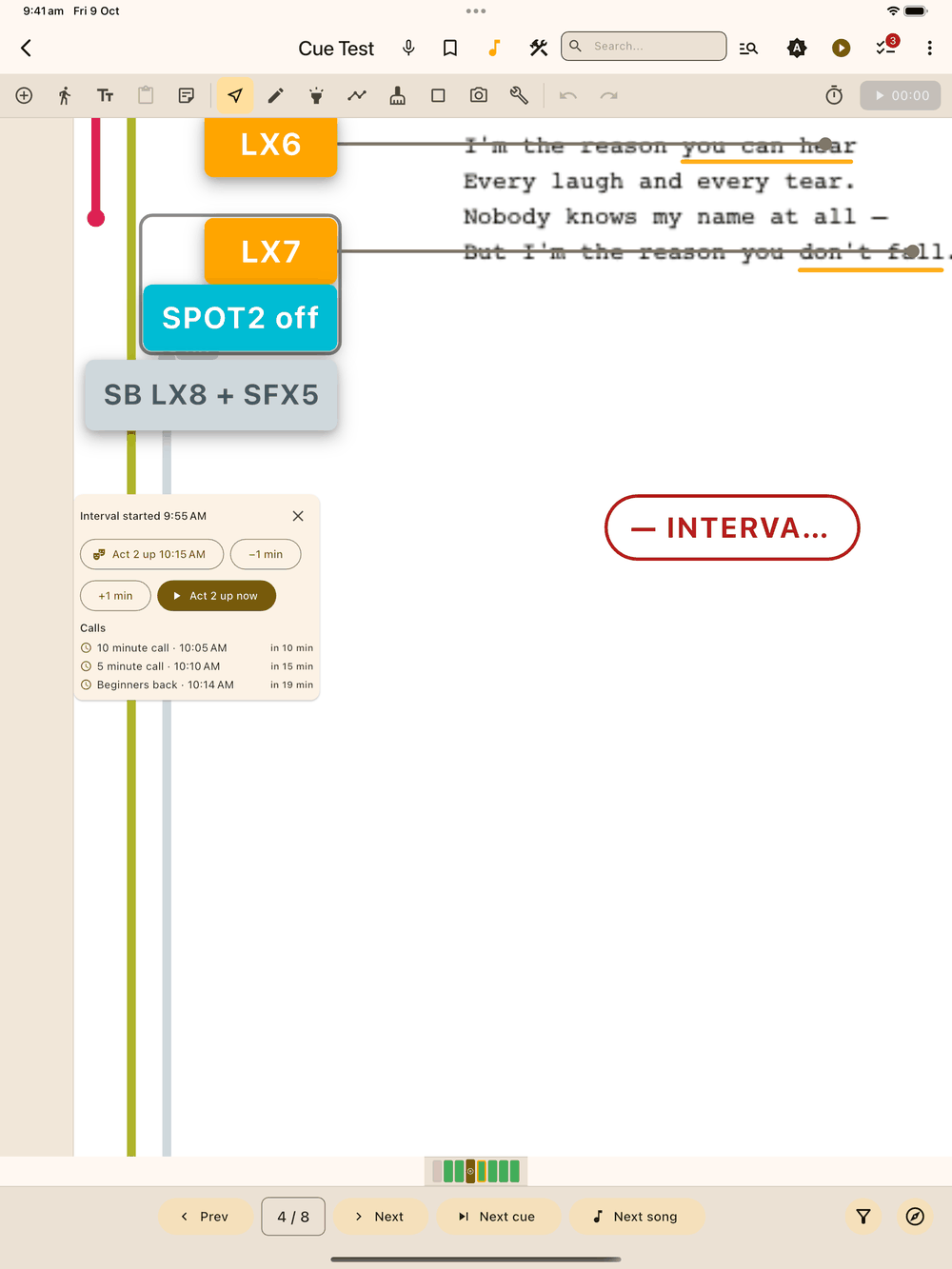
When the act starts, tap Act 2 up now. The panel closes and Act 2’s start time is recorded. After Act 2 up now, or after changing the Act 2 time, a message at the bottom of the screen offers Undo for a few seconds in case you tapped by mistake.
If you started the interval by mistake, tap the X. You’re asked before anything is cleared. The interval times are removed, the interval call alarms are cancelled, and the Time calls button comes back. Reset times on page 1 also closes the panel. A cue placed on top of the panel still works as normal, so the panel never gets in the way of calling the show.
Two-show days
Start the evening show from page 1 as usual. Once the evening’s curtain is up, the red bar and the Time calls button come back for the evening interval. Starting it clears the matinee’s Act 2 up and show end, so you’re asked first, and a message at the bottom of the screen offers Undo for a few seconds.
The four actions
Four buttons move the show forward. Only the one that matches where you are in the show is enabled, so you can’t press them out of order:
- Curtain up now is enabled until curtain is up. It sets the curtain-up time and schedules the pre-show call alarms (most will already have passed if you tap it right at curtain).
- Interval starts now is enabled once curtain is up. It records when the interval actually starts and suggests a planned Act 2 up time from your default interval length (see Defaults in Setup).
- Act 2 up now is enabled once the interval has started. It records the real Act 2 up time and cancels any interval calls that haven’t gone off yet.
- Show over is enabled once Act 2 is up. It marks the show complete.
Undo
An Undo button next to the action buttons reverses the most recent action or edit, including a change you made to the planned Act 2 up time. It only goes back one step. There’s no longer undo history, on purpose: losing curtain up to a stray tap mid-show would be much worse than occasionally having to redo a correction, so you get one reliable “undo the last thing” instead of a list to hunt through during a live show.
The timeline
Across the top: Curtain up → Interval → Act 2 up (planned) → Show over. Each shows its clock time once set, or a dash before then. The Act 2 up entry is labelled (planned) until you tap “Act 2 up now”, because it’s the one time on the timeline that isn’t fixed yet.
Pre-show and interval calls
There are two columns of calls, each a name plus how many minutes ahead it comes:
- Pre-show calls count down to curtain up. They start out as Hour, Half, The Ten, and Beginners.
- Interval calls count down to the planned Act 2 up time, and only appear once the interval has started. They start out as a 10-minute call, a 5-minute call, and Beginners back.
At the top of the interval column is the planned Act 2 up time. Tap it to pick a new time. Every interval call below updates straight away, and any alarms still to come move to match.
Every call has an alarm toggle. When it’s on, the tablet shows a notification reading "<show name> — <call name>", even if Lx1go isn’t running, and tapping it opens the Show Clock screen. If notifications are turned off for Lx1go, everything above still works from the on-screen timeline, you just don’t get the reminder.
The Now column
A clock that updates every second, plus the next call due (from either column) and a countdown to it. The countdown turns yellow once it drops under a minute.
Defaults in Setup
The Setup screen (Styles → Timing tab) holds the defaults every show starts with:
- Curtain up times: the usual curtain times for this show, offered by page 1’s Curtain up time button. They start as 7:30 PM and 2:00 PM. Tap a time to change it, Add for a new one, or long-press a time to remove it (you’re asked first). There’s always at least one.
- Default interval length: the only length setting. It’s used only to suggest the planned Act 2 up time when the interval starts.
- Pre-show calls and interval calls: each row has a name, a lead time in minutes, an alarm toggle, and a delete button. Add call adds a new row at the end.
If you delete every row in a list, a Restore default calls button takes its place, so you’re always one tap away from a working call sheet.