Show Mode
Show mode is the view you call the show from. The script fills the screen, cue boxes are big, the editing tools are gone, and the screen stays awake for the whole run.
Enter it from the edit screen’s play button in the app bar (a filled play-circle icon next to the theme icon).
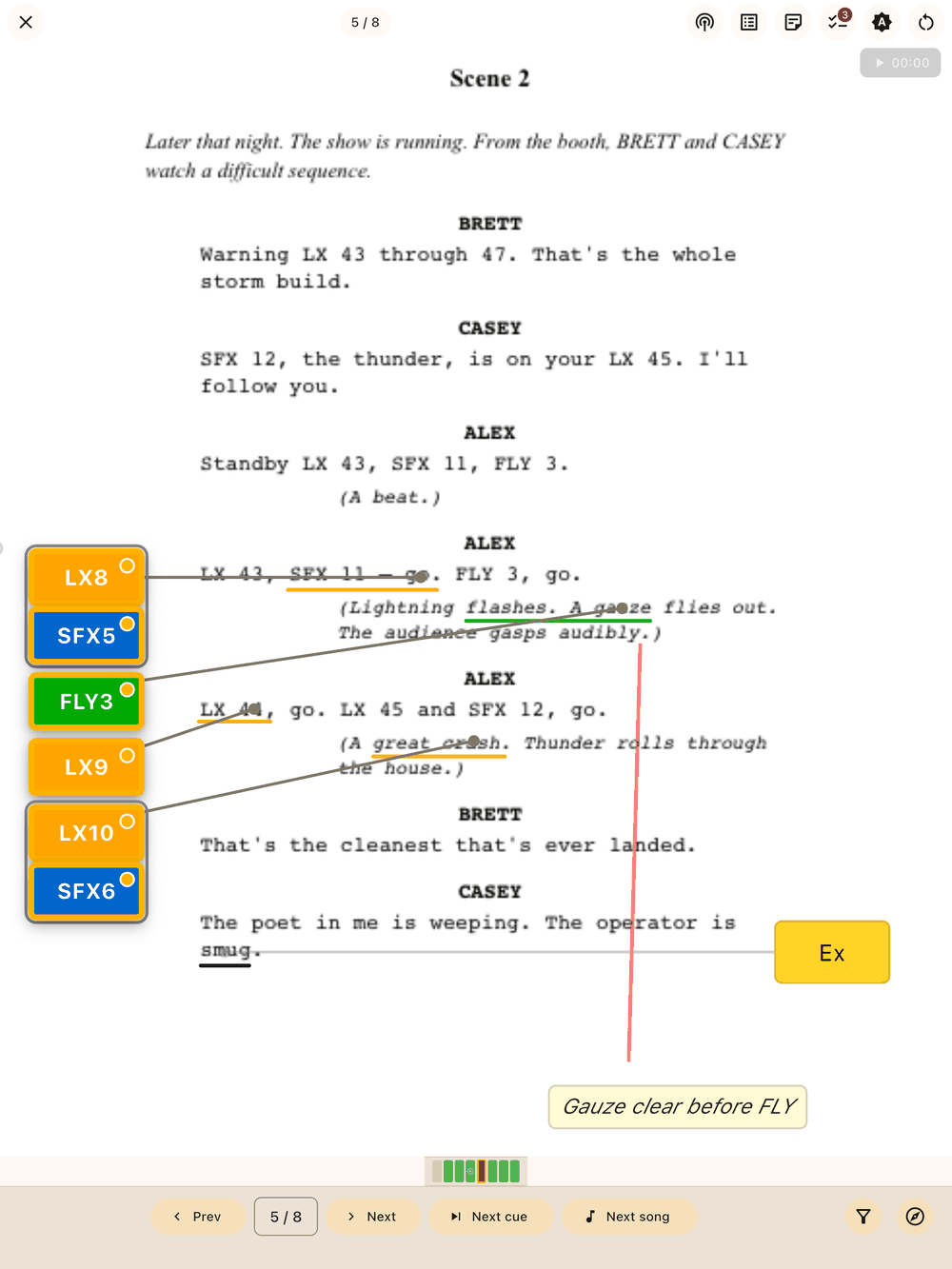
Calling cues
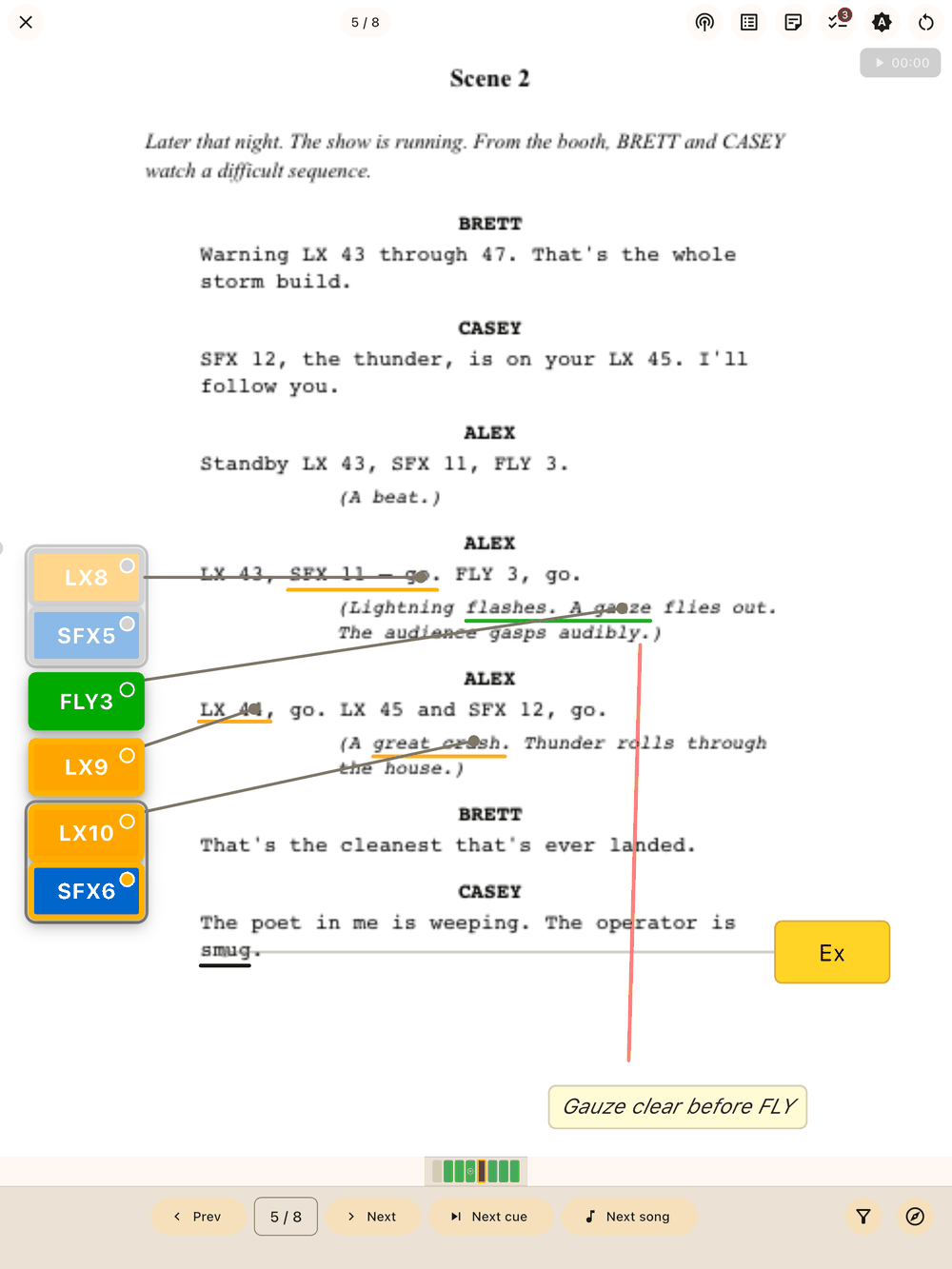
Each tap moves a cue on to the next of three states:
- Standby (amber): the cue is ready; give your “stand by” call.
- Go (green): the cue has been called.
- Complete (grey): done, and the cue fades so it stops catching your eye.
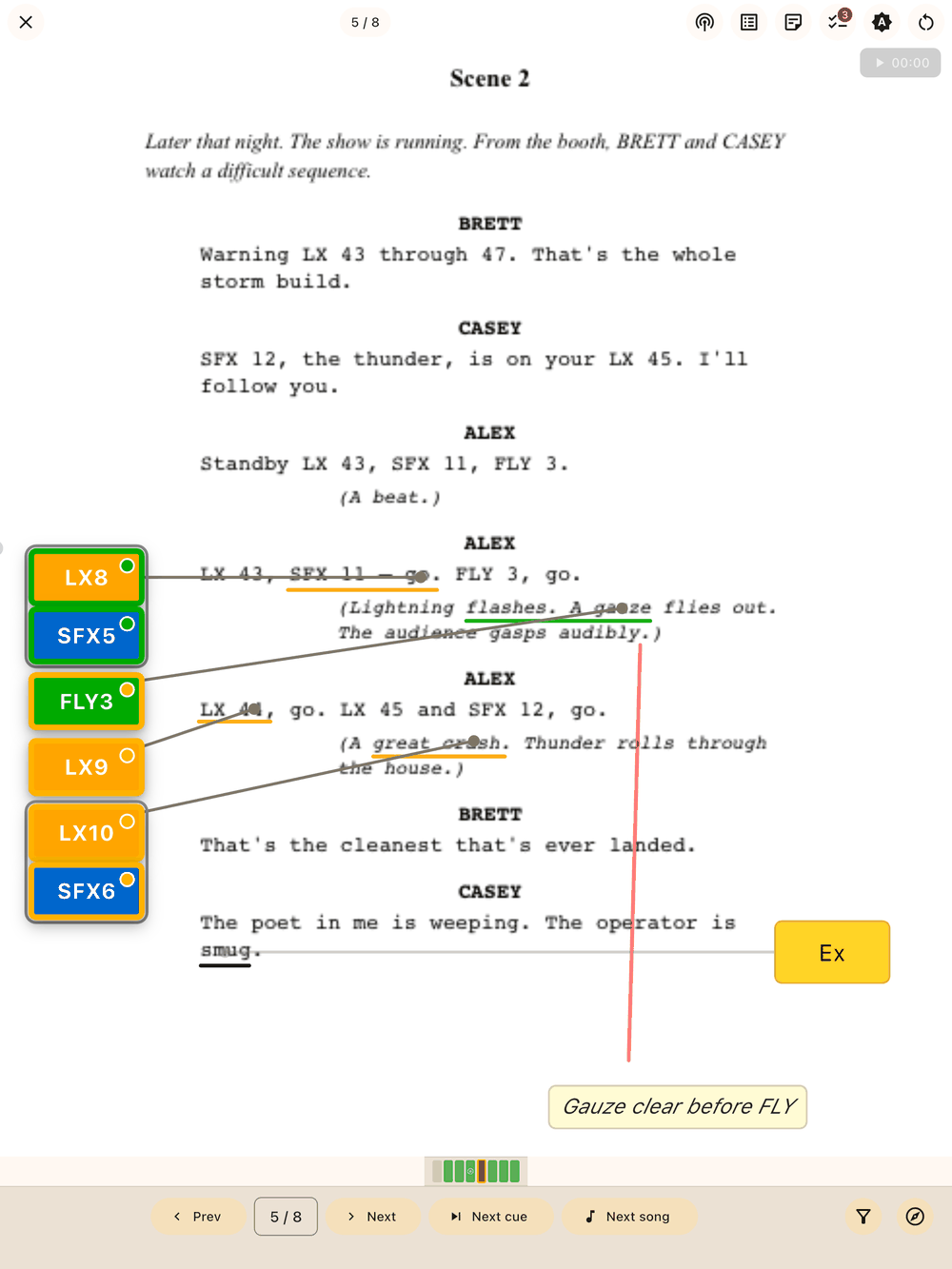
Tapping a completed cue returns it to standby, and you can reset cues for the next run. Follow-on cues show their “→” prefix so you know they go on the previous GO.
During the run
- Turn pages with the on-screen controls. Annotations, blocking and drawings all appear exactly as you marked them up.
- If the next page opens with a cue near the top, a small preview of that cue shows below the current page so the page turn doesn’t catch you out.
- Tap the show timer (also on the edit screen tool bar) to start and pause it; long-press it to reset. It shows elapsed time, and remaining time too when the show has an expected duration. Timestamp elements show their captured times alongside the action. For curtain up, interval and Act 2 timing with pre-show and interval call alarms across the whole performance (not just this run’s elapsed time), see Show Clock.
- The screen wake lock stays on for the entire session, so the tablet won’t sleep mid-act.
- On Android the system navigation bar stays hidden, in show mode and the edit screen. Swipe up from the bottom edge to bring it back for a few seconds.
- The theme icon in the top overlay (next to Notes and Reset Cues) switches between System, Light and Dark. It’s there in case a house-lights change makes the current theme hard to read.
- The bottom bar has the page controls, the filter button (a funnel) and Navigate.
Nothing you do in show mode changes your prompt book. All editing happens in the edit screen.
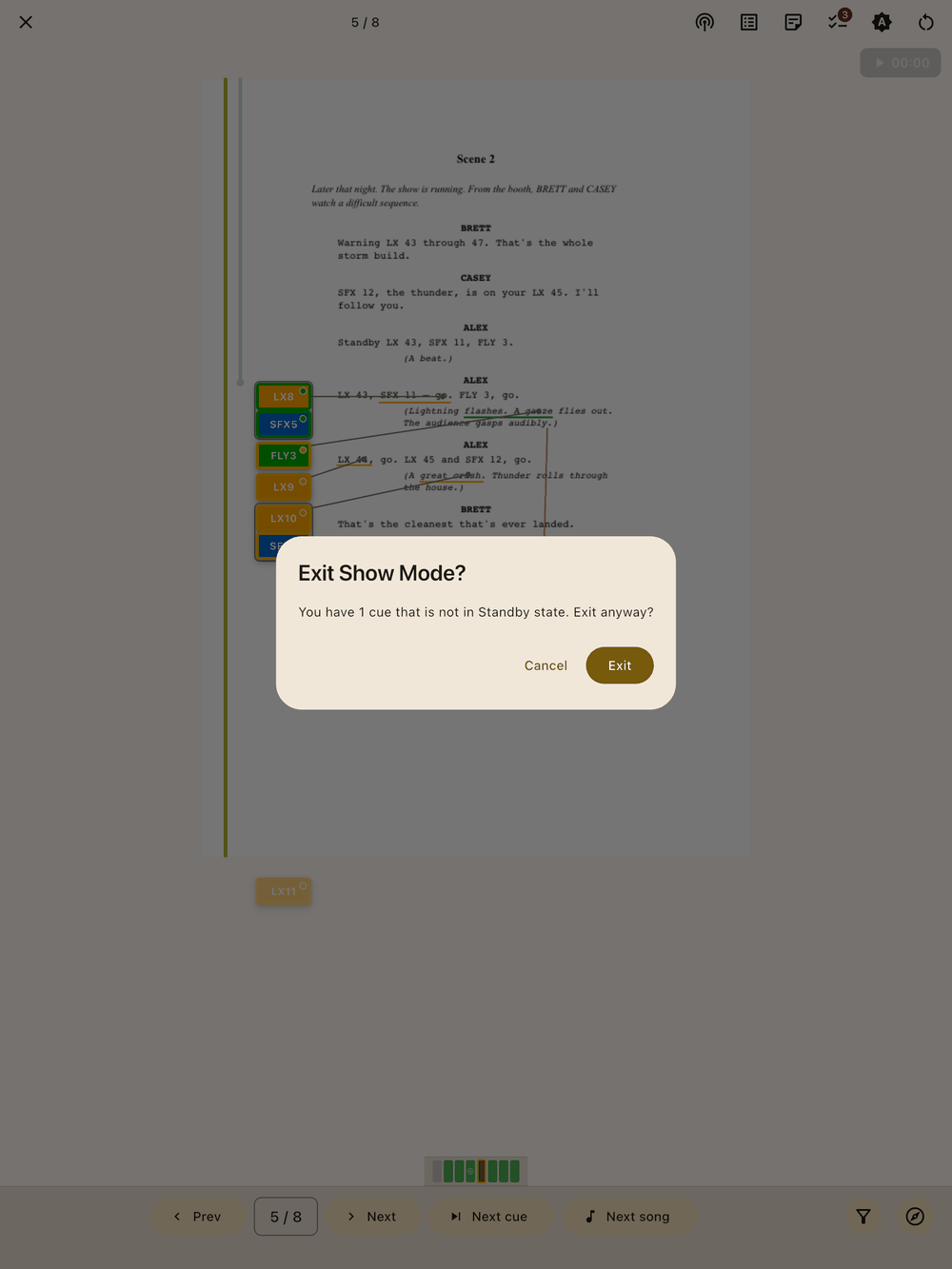
To leave show mode, tap ✕ at the top left. If any cues aren’t back in Standby, Lx1go asks before you go.
Filtering the page
Tap the filter button (the funnel, next to Navigate) to hide blocking, text boxes, time stamps or any cue type for the run. Hidden cues aren’t drawn and can’t be tapped, their trails disappear too, and the preview of the next page’s first cue skips them. If some cues in a group are hidden, the rest of the group shows and one tap still calls the whole group. Show all brings everything back.
The filter only changes what you see. Nothing is deleted, cue states and crew link carry on as normal, and the interval marker always shows. The spot pills above the page still list hidden spots. It’s the same filter as in the edit screen (you can set it there before the show) and it resets when you leave the show. See Filtering the page.
Starting and ending the show
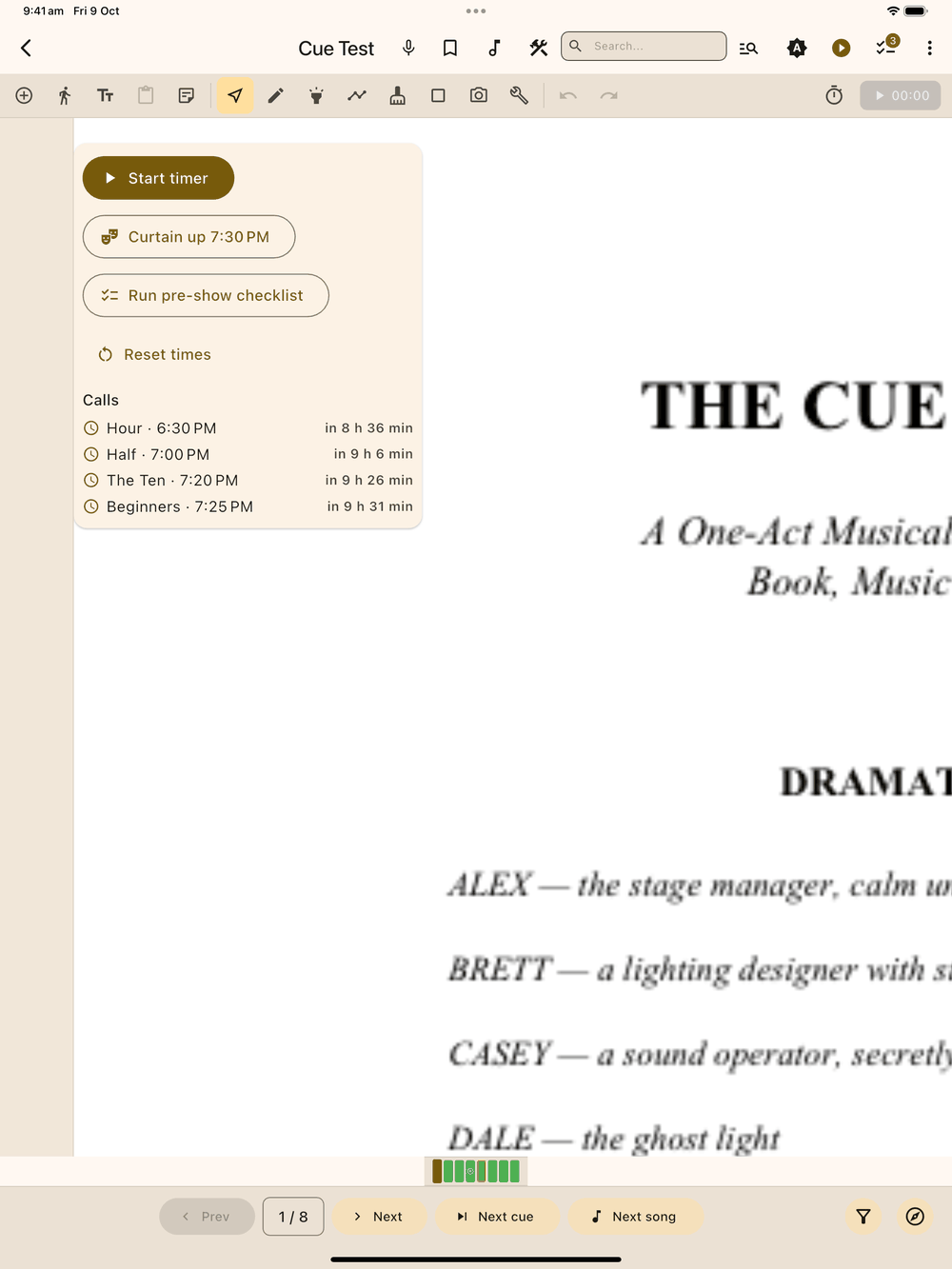
Page 1 has a small panel at the top of the cue margin:
- Curtain up time sets tonight’s planned curtain up. Tap it and pick one of your usual times (7:30 PM, 2:00 PM, or whatever you’ve set for this show in Setup), or Other time… for anything else. Until the show starts you can tap it again to change the time.
- Once a curtain time is set, a Calls list appears under the buttons with each pre-show call’s time and how long until it’s due, for example Half · 7:00 PM · in 12 min. Calls that are already due are ticked and greyed. The call alarms are set at the same time.
- Start timer starts the show timer and records the moment the curtain actually went up, replacing the planned time. So if you planned 7:30 PM and started at 7:36 PM, curtain up reads 7:36 PM and the interval works from that. The Calls list goes away once the show is running. If last show’s times are still set (from an earlier day), you’re asked first: Clear and start clears last show’s curtain up, interval and show end, then starts the timer. Your timer run history is kept. Cancel leaves everything as it was.
- If you’ve paused the timer, the button reads Resume timer and carries on from where it stopped. Resuming doesn’t change curtain up.
- Reset times appears once the timer has run or a show time has been set. It saves the timer run to timing history, sets the timer back to zero, and clears curtain up, interval and show end. You’re asked first.
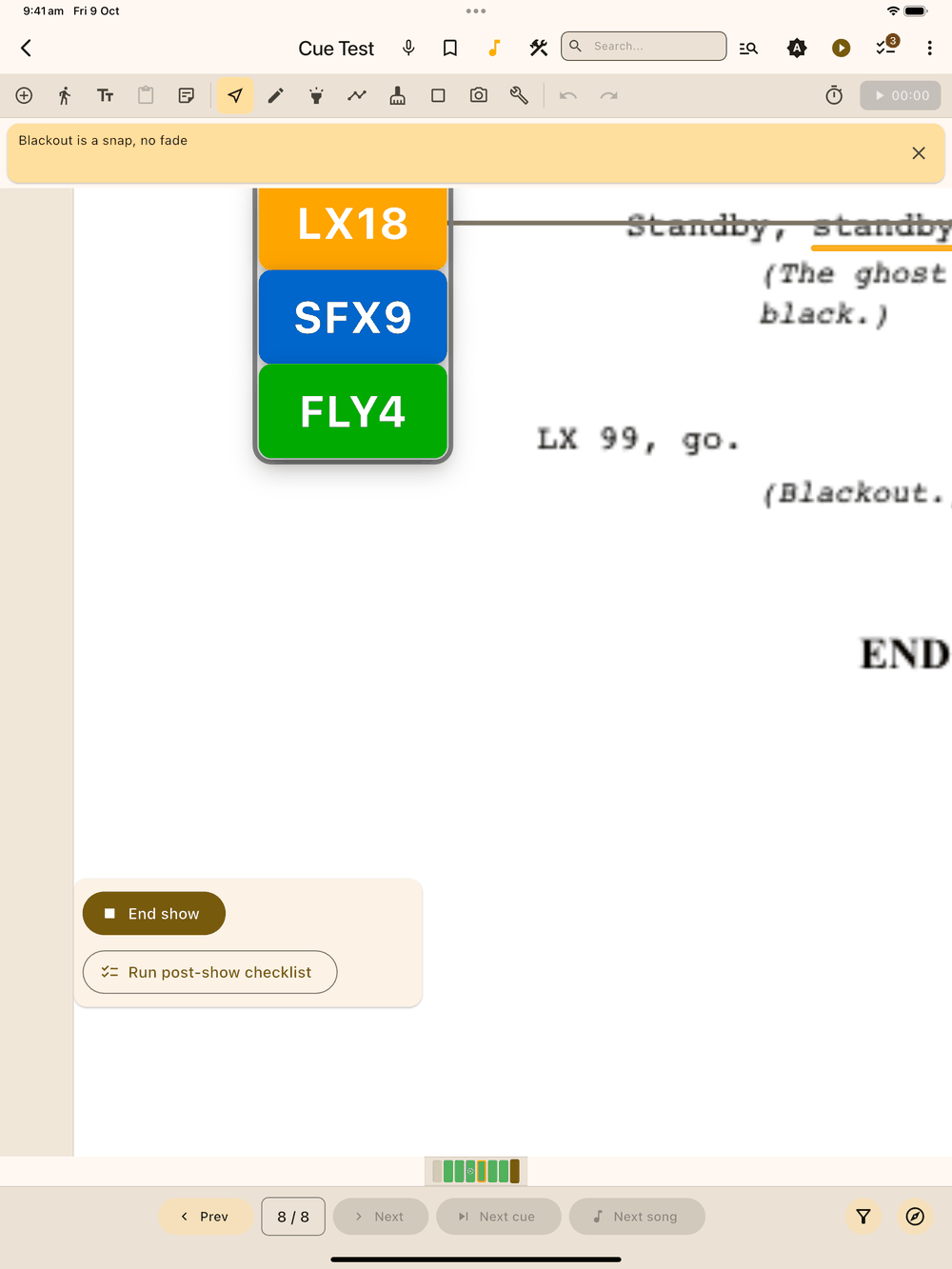
End show is in a panel at the bottom of the last page, in the same margin, where the script finishes. If your script is only one page long, the start panel is at the top and End show at the bottom. End show asks first, then stops the timer, saves the run, and records the time the show ended. Afterwards it reads Show ended 9:47 PM. Next day, End show is back, ready for that night’s show.
A time from an earlier day shows the day too, for example Curtain up Sat 7:30 PM, so you can’t mistake last night’s times for tonight’s.
Crew link
Crew can follow your calls on their own phones or tablets.
- In show mode tap Crew link in the top bar and switch it on. The tablet must be on the same Wi-Fi as the crew.
- A QR code, a web address and a four-digit join code appear. Crew scan the QR code (it fills in the code) or type the address into a browser, so there’s no app to install. The page they get is called CueYou.
- Each crew member types Your name, picks one Department (a cue type such as LX or SFX) or Watch only, and taps Join. Their page then reads, for example, “Shane on LX”. The Crew link sheet on your tablet lists everyone connected by name and department.
- Call Stand By before GO turns on automatically: your first tap on a cue or cue group sends Stand By, the second GO, and the third marks it complete.
- Crew see every department’s cues, but can only answer for their own. On a Stand By they tap STANDING BY (only for cue types with Crew acknowledges Stand By switched on in Setup → Cue types). After GO they can tap COMPLETE. NOT READY flags a problem, and READY clears it. Someone on Watch only sees every cue but gets no buttons.
- On your tablet the cue box shows SB, then a ✓ once crew have answered Stand By, ? while they haven’t, and a red NOT READY if crew flag a problem. Crew can never stop you calling GO.
- A cue group is called as one. Each department in it gets its own card and answers separately; the group shows ✓ once everyone has. When crew mark their part complete, that cue is ticked; the group completes when every part is done, or when you tap it.
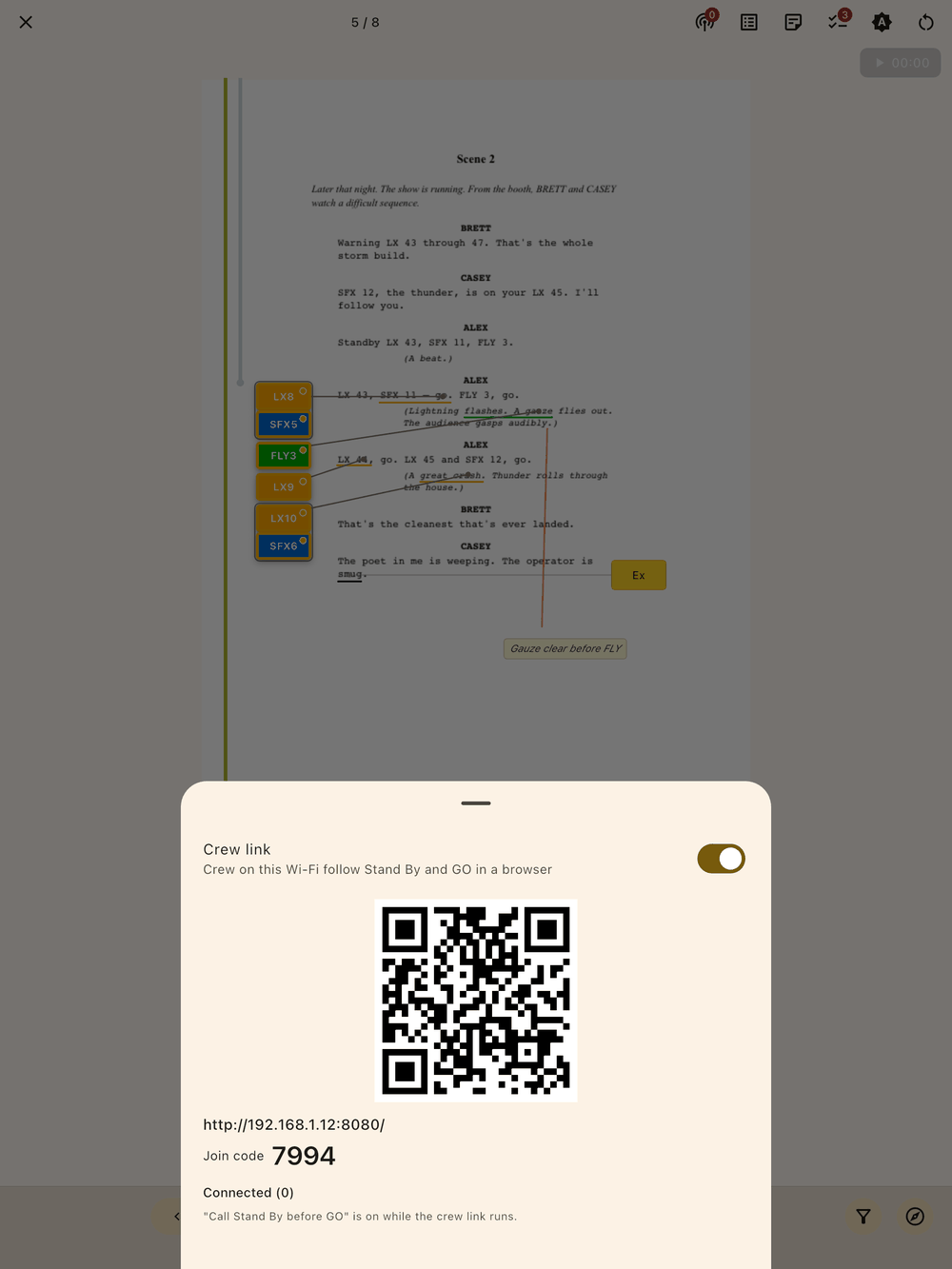
The link stops when you leave show mode, and you get a new join code each time it starts. If the app is closed or in the background, crew see “reconnecting…” until you come back. Live progress isn’t saved, so after a restart go back to your page and call the next Stand By.