Songs & tags
On a musical you’re forever jumping to the next number. In Lx1go you can tag any page as a song, with an optional title like Opening Number or Act II Finale, and then jump straight from one number to the next without hunting through the script.
Tagging a page
In the edit-screen app bar, tap the music-note icon beside the bookmark icon . The Tag as song dialog opens (Edit song tag on a page that’s already tagged):
- Title (optional): type a name (e.g. Opening Number), or leave it blank to mark the page as a song without a name.
- Save tags the page. Pressing Enter in the title does the same.
- Remove clears the tag. It only shows on a page that’s already tagged.
- Cancel closes without changing anything.
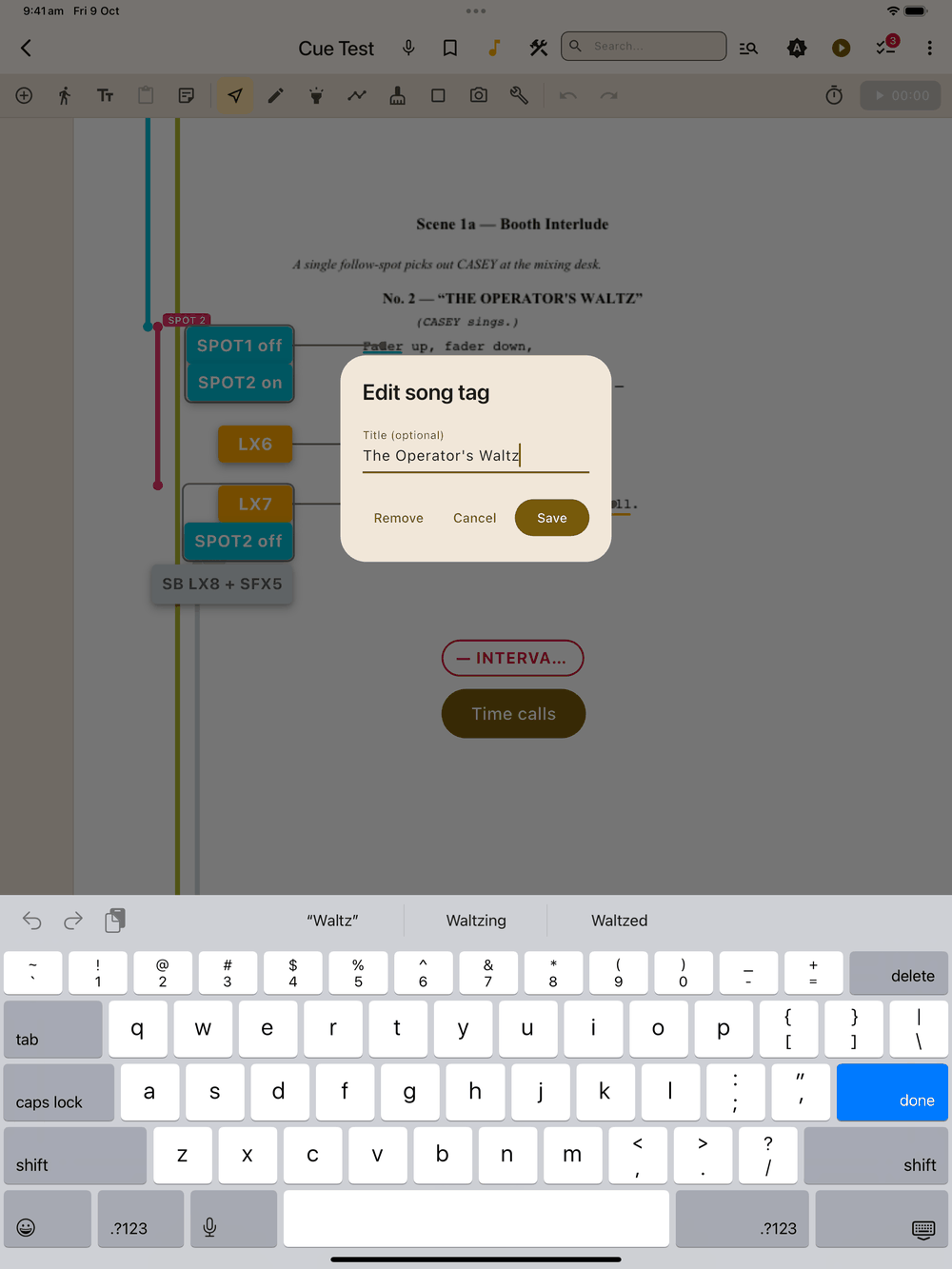
The icon fills amber when the current page is tagged, the same way the bookmark icon does.
Jumping between songs
There are two ways:
- Next song in the bottom controls jumps forward to the next tagged page. If there aren’t any ahead, a message at the bottom says “No more song pages”. The button is greyed out on the last page.
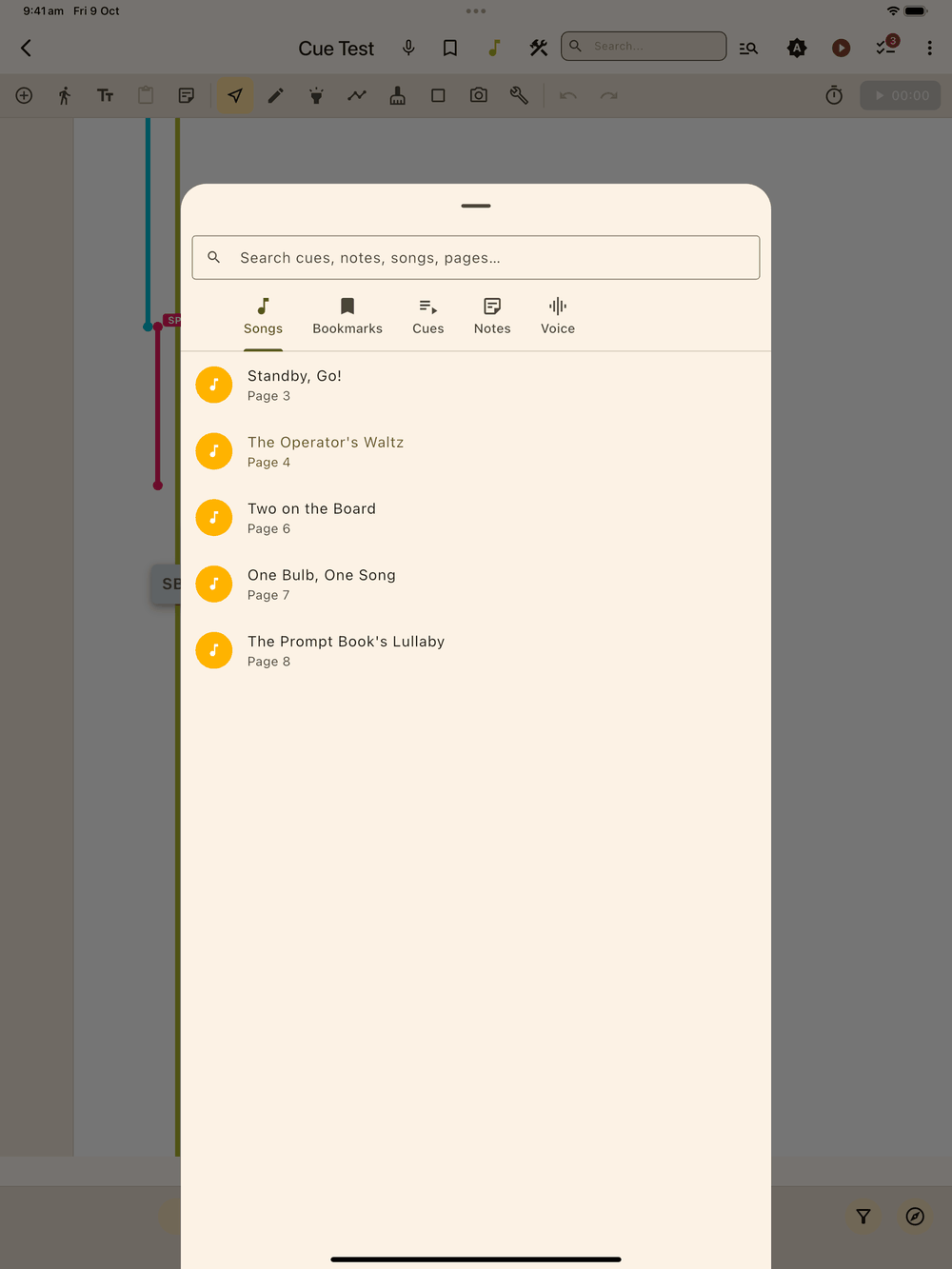
- Navigate, then Songs (the compass button at the right end of the bottom controls, in the edit screen and show mode) lists every tagged page in show order, with title (or "(untitled)" if you skipped the name) and page number. Tap a row to jump. See Navigation & Zoom.
Where tags show up
Every tagged page has a small amber music-note badge in the top-left corner of its thumbnail in the Page thumbnails grid. Press and hold it to see “Song: title”. Tags are saved with the show and stay with their pages when you reorder them, just like bookmarks.